Optimizing Audio Traffic and Quality for PCoIP

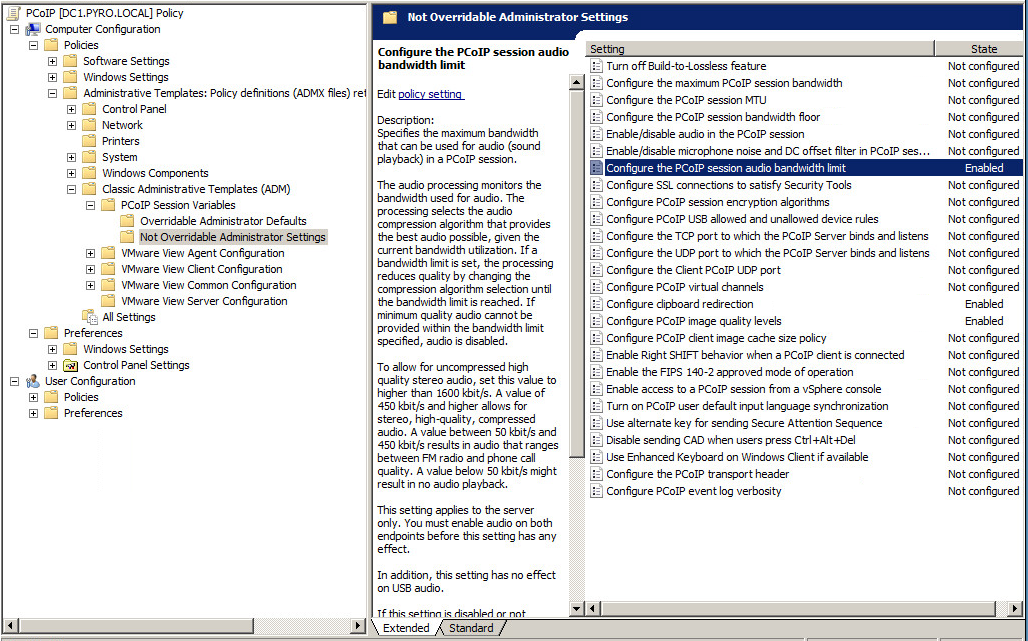
Hey guys, just wanted to give a shout out to a single GPO parameter that can be configured to reduce a TON of audio network traffic in your Horizon View deployment. All of the GPO parameters to tune the PCoIP session statistics are located here:

GPO_Location

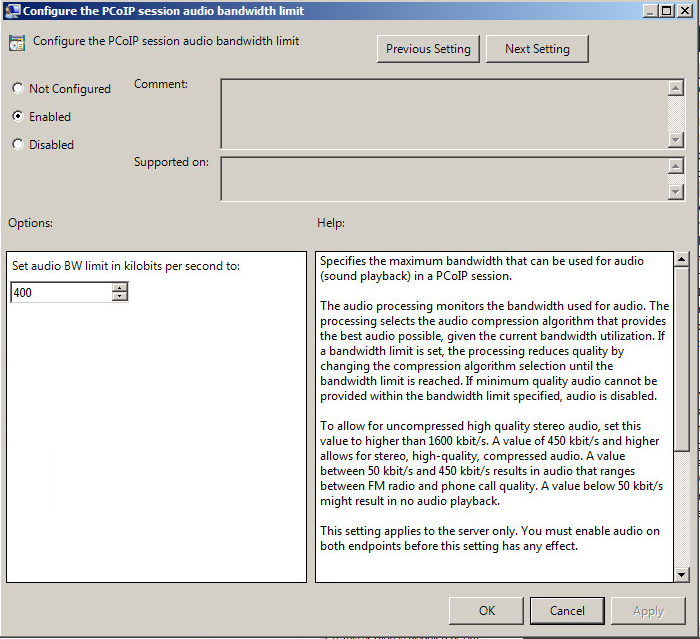
The following image shows the PCoIP session audio bandwidth limit:

GPO_AudioBandwidth

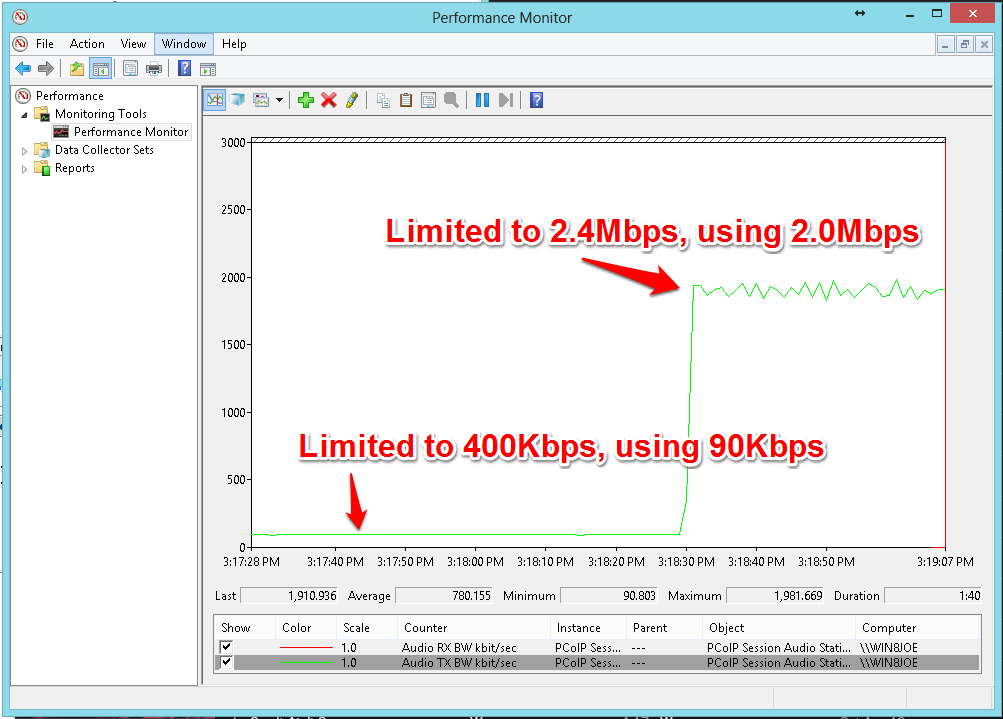
In the below video we demonstrate the impact of changing the default behavior to 400Kbps and the impact on traffic. The audio quality changed from using around 40Kbps of audio TX to about 2Mbps, which is definitely a sizable difference just for audio quality. In the video you can hear the difference in quality. For my own use case, since I actually use the VM as my primary workstation and I use spotify, I had to tune this to 2400 because I didn’t want to listen to shoddy quality audio at my desk. Your  mileage may vary, but 400 is a great starting point for all non-audio intensive use cases. Disabling the default sound schemes is also a good idea to prevent spikes of audio.

AwesomeDifferenceBetween400Kbpsand1600

Also of note, I experienced some weird audio stuttering of the sound and some bizarre sounding weirdness. CPU was fine, so was the network. I followed this KB titled Audio issues with the VMware Virtual Audio (DevTap) driver running on a Horizon View desktop (2045764) and installed the Teradici Audio driver in the VM. No issues for me since that time and no other configuration changes were made. See below for version and build information.

The configuration utilized for this demonstration:

View VM: Windows 8 Enterprise, 2 vCPU 3GB Memory, View Agent 5.3.0.1427931, Teradici Audio Drivers Installed in guest

View: VMware Horizon View 5.3.0, Servers and Agent with Experience Feature Pack 1

Endpoint: Wyse P25 Zero Client with HD Audio Enabled, Klipsch THX Speakers

PCoIP Audio Traffic Optimization and Audio Quality Demonstrated from Joe Clarke on Vimeo.

Disaster Recovery Is Like Your Sump Pump

Oh snap.
Oh snap.

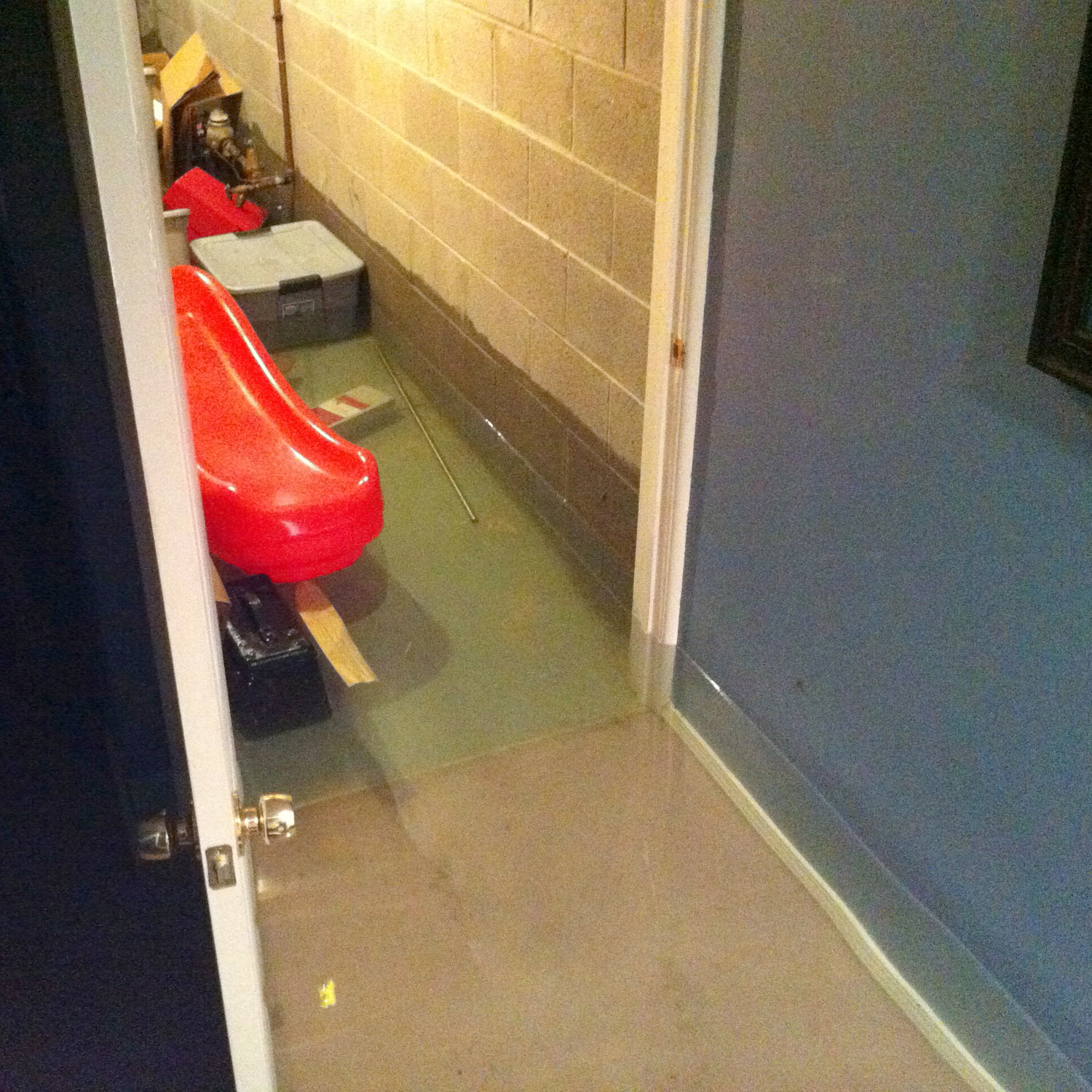
It seems to me that nobody cares about their sump pump until it stops working. I use this analogy all the time with customers and given yesterday’s torrential downpour and flood warnings here in North East Ohio, I thought it fitting to jot down a quick post about it. I’ll start with a story from a few years ago. I was traveling and out of town, when I got a phone call from my wife that the basement had completely flooded with 2′ of water. It turned out that the water main had broken away from the foundation of the house and was pouring water into the ground surrounding the foundation at a ridiculous rate. It didn’t take long for the primary sump pump to burn out and then all of a sudden boom; my finished basement was a swimming pool. The damage ended up being right around the $18,000 after repairs and replacements.
Often times the folks I’m dealing with are the sysadmins and network admins, one of the frequent rumblings I hear is the fact that management refuses to spend money on disaster recovery. When I hear this, I simply look at them and ask them a very simple series of questions that usually looks like this:

Do you have a basement?  “Yes.” Do you have a sump pump in your basement?  “Yes.” Do you have two sump pumps in your basement with a battery backup?  “No.” Why?   “Because my basement has never flooded.”

And at this point the light bulb actually goes on and the sysadmin/network admin realize that they themselves are managing their own homes, something which they usually have complete autonomy over, in the same fashion as management sometimes sees IT. In the same way that the admins have not invested in a sump pump disaster recovery solution in their own home, this is often parallel to the philosophy that management undertakes with IT systems.. Sadly enough, we saw that with my own behavior in the above story, that I really only gave a thought to actively doing something to mitigate the risk of a disaster only once it actually happened to me. This is the same exact management quandary that senior IT management must battle; risk management. All of a sudden in my case, $330 dollars to purchase a backup sump and battery with trickle charger seems a lot more reasonable.

Sometimes a flooded basement is just what management needs to wake up and smell the coffee. I don’t think anybody wants you to have a flooded basement or wants your IT infrastructure to have a critical fault or suffer a disaster, but our job as good IT consultants is to help prepare folks for when it does and help them realize the risks to their business if they don’t.

How to Open Multiple Instances of the Horizon View Client on OSX

So, I have to put this one up here because I use it way too often. It bugged me that I couldn’t be remoted into my VDI home lab and a customer site at the same time. This command will spawn a separate instance of the View client on OSX that can be used completely independently from the first instance.

open -n /Applications/VMware\ Horizon\ View\ Client.app

###1CMD###2

My Little VSAN

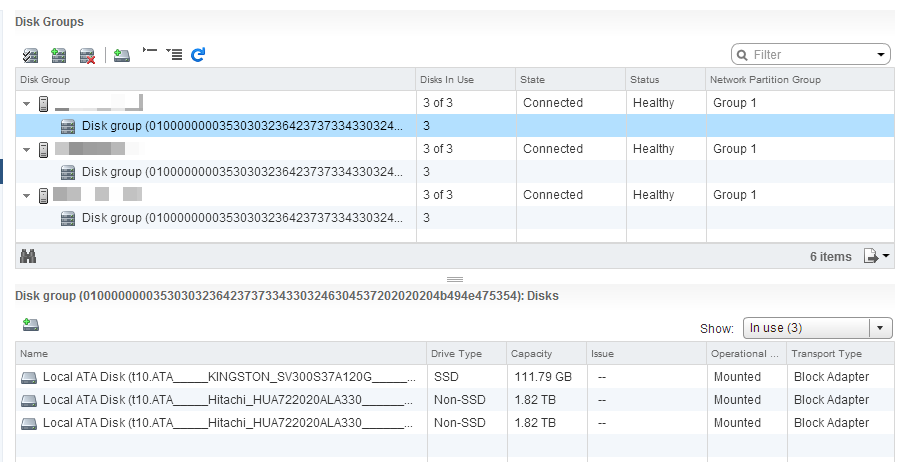
MyLittleVSANSo I finally got around to refreshing my VSAN after the 1.0 release and I was hit by the AHCI bug. I must say, I had forgotten how powerful it is to put the disk “close to home” with VSAN technology is and how truly simple it is to set up. The goal of this post is simply to provide you with the hardware that I utilized to make my little VSAN lab, which has ~11TB of capacity and 360GB of flash. I also ran two quick IOmeter runs and posted their output. And yes the graphic over there is cheesy. I have lots of children in my house so it somewhat explains my rationale.

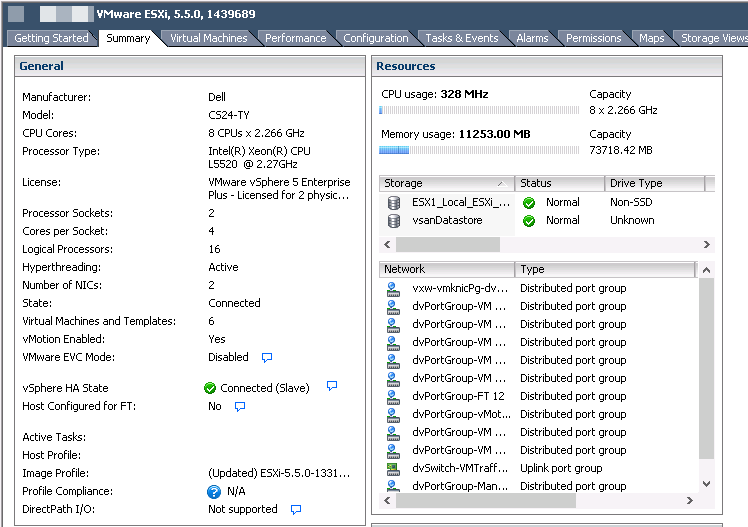
I purchased 4 refurbished C1100 CSTY-24 servers spec’d as such:

(2) Xeon L5520 CPUs @ 2.27Ghz

72 GB Memory

(3) 2TB Hitachi  7200 RPM spinning disks per server

Host_ConfigVSANVSAN2

I purchased them from deepdiscountservers and they cost me about $900 USD each, which was a pretty good deal, even when comparing against a whitebox build. Of note, since these are refurbed OEM’d custom spec’d systems, Dell will not support them and good luck updating the BIOS on them. One of them had some bizarre fan issue where it would spin the fans all the way up at random even though the temp and workload were not changing, so I’m just dealing with that. If I had to buy again, I’m pretty sure I’d actually choose a different flavor of pizza box. May you have better fortune than I in the refurb land. Also of note, there is no RAID card in this server, just an AHCI controller, which is perfect for what we need to do with VSAN. Assuming you’re on the Beta refresh. : )

I also purchased (3) Kingston SSDNow V300 120GB SATA disks from Microcenter for a cool $70 each. 

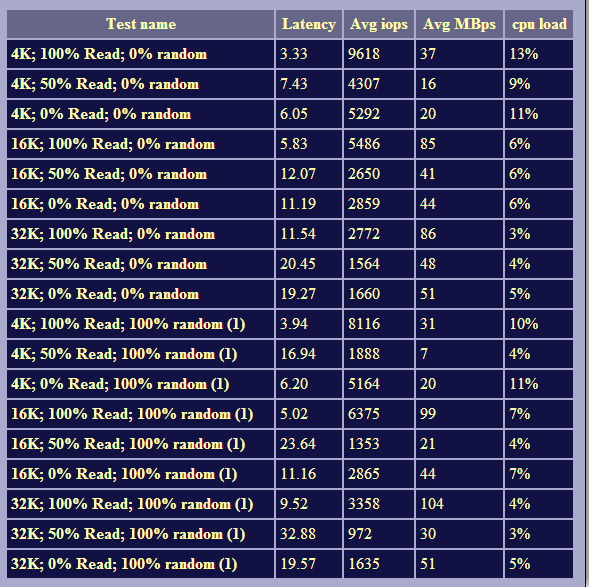
So far with the VSAN beta refresh, everything has been great! Two base runs of iometer on a Windows 7 VM came out as such. I used http://vmktree.org/iometer/ to format the output nice and quick. I will say this, not bad considering it’s refurbed servers with 7200 RPM disks and non-certified MLC flash! Not bad for a basement project, not bad at all. Stay thirsty my friends.

VM Policy: 1 Failure

WIn7IO_1Failure

VM storage Policy: 1 Failure, 1 Stripe Per Disk, 20% Read Cache

WIn7IO_1Failure1stripe20percent

vDGA with View 5.3 and K1 and K2 Cards: Pool Settings, Linked Clones, Black Screens Oh my!

I ran into an issue when deploying vDGA with View 5.3 on Cisco C240 M3s with both K1 and K2 nVidia graphics cards.

First, I’m sure if you’re here, you probably already downloaded and read the whitepaper on how to configure the entire setup.

Virtual Machine Graphics Acceleration Deployment Guide – VMware

If not, go read it.

Here was the setup I was utilizing:
vCenter 5.1 U1 1235232
ESXi 5.1 U1 799733
View 5.3 Build 1427931
View Clients
Windows 7 View Client 2.2.0 Build 1404668
Wyse P25 Tera 2

Cisco C240 M3
nVidia K1 Graphics Card
Teradici 2800 Apex Card

Cisco C240 M3
nVidia K2 Graphics Card
Teradici 2800 Apex Card

The problem I was running into was that most of the documentation was focused on the vSGA configuration, rather than vDGA and it wasn’t perfectly clear what we had tried.

So when I followed the guide to the T with an existing image (and a new bare bones Win7 x64 golden image) would receive a black screen when attempting to log in. Another issue that I had with the documentation was that it was definitely not clear what the View pool settings should be, specifically as it pertains to 3D/hardware acceleration for the vDGA virtual machines.

So in my testing and trials and support with VMware, I finally came across a working solution. Some of these tips and tricks will definitely help you surf the water, I really wish someone had posted this before I had started, it would have made my life a lot easier.

1. Although the deployment guide in its current form says that ESXi 5.1 is supported, for me, it didn’t work with vDGA, we were getting black screens and yellow bangs on the K1 card in device manager on the Win7 VM. My team contacted some of the reps at NVIDIA who cleared up that point for us with the following information: since vDGA was tech preview with 5.1, VMware still supports it. However, for use with production environments you NEED to be at 5.5. No ifs ands or buts. So if you’re not at 5.5? Go ahead and plan that upgrade. Once we upgraded to 5.5 things pretty much fell into place.
2. Firmware firmware firmware. Make sure your hosts are COMPLETELY up to date on their firmware. Let’s be honest, you’re standing up a new environment for best in class graphics performance. Do you really want to start off with outdated firmware?
3. Do you need the xorg service to be running for vDGA to work? No, you don’t. Can you mix and match 2 GPUs on vDGA and 2 on vSGA? Sure you can.
4. When configuring the virtual machine for vDGA, it was really not clear on how to configure the VM and what pool settings to use for graphics acceleration. The pool needs to be set on “Use vSphere Settings” on the pool.

1. Use Virtual Machine hardware version 10. Yes…this does lock you into using the web client to edit the virtual machine settings. Rawr. Also, make sure you set the other advanced parameters that are specified in the vDGA guide that is linked at the top of this article.
2. Use Windows 7 SP1 64 Bit Only
3. Use at least 2 vCPU and 8Gb of RAM
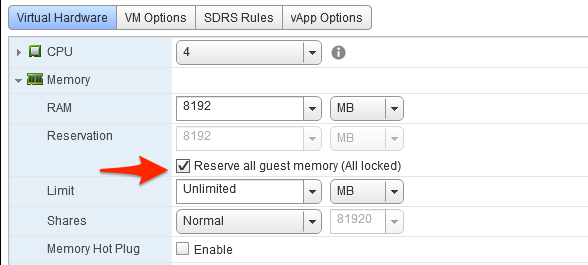
4. Make sure you reserve all the assigned memory to the virtual desktop
General_Desktop2
6. You must edit these settings using the web client:

Make sure the video card is set to:

1. Software Acceleration

2. 3D Acceleration is UNCHECKED

So once we identified those roadblocks, the configuration now looks like this:

  • vCenter 5.5 U1 1235232
  • ESXi 5.5 1331820
  • View 5.3 Build 1427931
  • View Clients
  • Windows 7 View Client 2.2.0 Build 1404668
  • Wyse P25 Tera 2

Cisco C240 M3

  • (1) NVIDIA K1 Graphics Card
  • Teradici 2800 Apex Card

Cisco C240 M3

  • (1) NVIDIA K2 Graphics Card
  • Teradici 2800 Apex Card

And voila! It worked like a champ.

One of the open issues we discovered was that when we followed this procedure to add the cards to the linked clone VMs: We configured base image to have a PCI Device of one of the video cards. Load NVIDIA drivers. Run monteryenable and shutdown. Remove PCI device. Snapshot and deploy. Configure passthru devices for each linked clone VM.

When we did that, we were able to see that the cards remained attached to the VMs. However, the first time we tried to log onto the VM, we’d get disconnected from the session during the first logon. When we reconnected, we found that the logon had worked fine, but for some reason we dropped during the initial connection period.  It worked normally for subsequent logins, but every time we refreshed the PC the connection would drop during login. We still have an open case with VMware as to why this is, since the 5.3 release notes say pretty clearly that this is possible.

The moral of the story here is that vDGA rocks, and that we should probably get some more detailed documentation on the setup procedures, particularly around vDGA and linked clones.

Below I’ve got two different videos using a REMOTE connection. When running a simple Geeks3D test using the native graphics and PCoIP, then the second with the K1 utilizing vDGA.

vSGA & PCoIP with 3D Acceleration from Joe Clarke on Vimeo.
vDGA with Nvidia GRID K1 & PCoIP from Joe Clarke on Vimeo.