Getting RID of duplicate objects!

A while ago, after a failed attempt to P2V a domain controller an environment I was working with was getting the following error messages when trying to delete and create AD objects.  Before we delve in, let me explain why the P2V of the DC was even done. The VMware KB outlining the best practices in regards to virtualizing domain controllers, clearly states  and I quote “VMware does not recommend converting a Windows NT domain controller if at all possible.” The reason that the attempt to virtualize the DC without standing up a fresh VM was legacy unsupported unwarrantied SSO and Biometric software that was installed and could not be modified or reinstalled on a new server. During the P2V the server was rolled back to the physical DC after the virtual one came up, because the SSO software wasn’t functioning after the migration. Let’s look at the error messages that presented afterwards. Error messages when creating user objects:

Windows cannot set the password for <Objectname> because: The requested object has a non-unique identifier and cannot be retrieved.

Windows cannot remove the newly created object automatically.  Remove it manually or contact your system administrator

Event ID 16646 The computed account identifier is not valid because it is out of the range of the current account-identifier pool belonging to this domain controller. The computed RID value is %1. Try invalidating the account identifier pool owned by this domain controller. This will make the domain controller acquire a fresh account identifier pool.

The first thing I ran was a dcdiag /V, and headed to the section highlighting the RIDmanager test. RIDs are variable length numbers that are assigned to new objects at the time of creation which helps ensure that a unique SID is created for each new object. The RID Master role is responsible for doling out pools of 500 unique RIDs to domain controllers, so that they each can create objects with unique SIDs.  RID pools are distributed by the RID Master, which is one of the FSMO (Flexible Single Master Operations) roles.

Here is a sample output of of the RidManager test when running dcdiag /V:

Starting test: RidManager
* Available RID Pool for the Domain is 61103 to 1073741823
* dc1.contoso.com is the RID Master
* DsBind with RID Master was successful
* rIDAllocationPool is 51103 to 51602
* rIDPreviousAllocationPool is 51103 to 51602
* rIDNextRID: 51103
……………………. DC1 passed test RidManager

The bolded underlined sections show which pool is allocated, which pool was previously allocated. At first glance with the diagnostics, it appeared that all the RID pools were properly assigned unique pools of 500. Examining the event logs and finding the event ID 16646 SAMMSG_INVALID_RID was the give away. This was caused by what is called USN rollback, which microsoft has a great article on called “How to detect and recover from USN rollback“. One of the potential root causes is you guessed it, reverting to an old snapshot of a DC.

We ended up fixing the problem by running the vbscript iRIDPool.vbs included in this technet article on each of the affected DCs. The script invalidates the RID pool currently assigned to the DC and forces it to get a new one the next time an object needs to be created. Once the RID pools were invalidated, we attempted to create a new user from each of the DCs. The first create attempt failed and forced the DC to get a new RID pool. As a result, the second attempt was successful. Also, subsequent dcdiags revealed that the pools had been updated and were now using assigning from new RID pools.

The moral of the story is don’t P2V domain controllers, but if there is no way around it pay very close attention to VMware’s and Microsoft’s recommendations for the process.
HTTP 500 Internal Server Error and Logon Problems with Citrix Access Gateway 5.0.4

I recently ran into a tough problem with a new Access Gateway setup. The setup was 2 virtual appliances controlled with the Access Controller on a Windows domain member server. The problem presented with a 500 error. Then if you refreshed the page the logon page would appear, but logins were erroring with a message something like “Try again, or contact your help desk or system administrator for help”. Google searching for 500 errors on the Access Gateway pulled up a bunch of older articles that weren’t relevant to 5.0.4 version. When we went to the web interface of the appliances we noticed that there was a warning that the access gateway cannot connect to controller. So we started looking at the network, and nothing had changed. Then we searched that error and came to this article. It then occured to us to check the time synchronization between AD and the access gateway appliances. We then noticed that the time was out of sync by more than a minute. Per the article, the time needs to be less than 30 seconds apart in time. We had set up a network ACL so that the appliances in the DMZ could get NTP from our internal server, however the ACL was accidentally configured as TCP over port 123 instead of UDP over port 123, and the clocks eventually got out of sync. Setting the NTP settings on the appliance to time.nist.gov and rebooting the appliances ended up getting us within 7 seconds, which fixed the problem.

SCCM PXE Boot Media Certificate Expiration

Recently I came upon a default self-signed PXE certificate expiration on a ConfigMgr PXE service point site system. The warning message is:

Warning: The certificate associated with this media will expire in hour(s) and minute(s). A valid certificate is required for the duration of a boot media based deployment. Do you wish to continue?

To re-up the self signed certificate is quite simple, but a few extra things need to be done as well once the certificate has a new expiration date. First we navigate in the console to the server which clients are PXE booting from under site systems and look at the properties of the ConfigMgr PXE service point role.

Click on the database tab then set the expiration date out. Now we have to go to the Boot Images node in the SCCM console and update the distribution points (follow the wizard) for each of the boot images that contain the expiring certificate. Then restart the WDS service on the server and you’re all set.

Change a Computer’s OU during an OSD Task Sequence

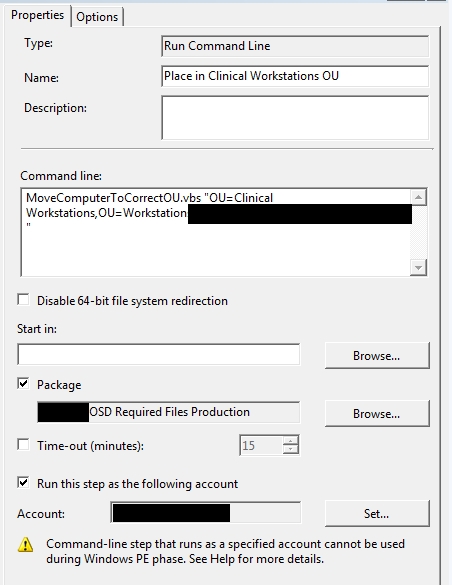
I came across a situation when testing pushing re-images out with SCCM where I needed to ensure that the old computer object had been moved to the new OU that I specified. This is because even though I specified what OU I wanted the computer to be moved to during the “Apply Network Settings” task, the computer object wasn’t moved because the object already existed. I downloaded and modified Jakob’s vb script MoveOU.vbs which accepts the target OU as an argument.

The caveat with this script is that that since it needs to be run with an AD account that has rights to move the computer object, it cannot be run while the PC is in the PE, so it has to be run after the computer has been sysprepped and has booted from the OS that was dropped to the disk. Not a big deal, since we want the script to be successful even on new images where there isn’t an existing computer record. Here is an example command line usage:

MoveOU.vbs “OU=Marketing Department,OU=Workstations,DC=CONTOSO,DC=COM”

Add a CSV list of users to an AD group with powershell

I love Quest’s powershell cmdlets for AD. They have added a ton of productivity improvement to my life. Since I was used to writing scripts in VB and using dsquery and dsmod, it wasn’t a fast process, but eventually I started to get the hang of the syntax and boolean changes. Here is one quick super easy script that has recently saved me a bunch of time. Keep in mind you have to have the Active Roles Management Shell for AD installed, which is a free plugin released by Quest, otherwise you won’t be able to add the snapin with the first line.

add-PSSnapin quest.activeroles.admanagement -erroraction SilentlyContinue
Get-Content “C:\Powershell\listofusers.csv” | Add-QADGroupMember “Security Group Name”

All that is in that CSV is a list of SAM account names in the first column. Quick and easy.