VMs getting stuck on Customizing with VMware View 5.0

I ran into this in a test lab environment and figured it would help to share. The View VMs in one of my test labs were hanging on the customization step, both linked clone VMs and full. I started troubleshooting and came across a couple pertient articles and really good ideas when this happens. The KB article on VMware’s site in regards to this problem highlights a few steps:

  1. Make sure the network is functioning between the desktops and the connection servers, DNS must resolve both ways and the required ports must be open. (see here)
  2. Verify that the template has been set up correctly (see here)
  3. Verify that the guest customization settings are correct and working. (see here)

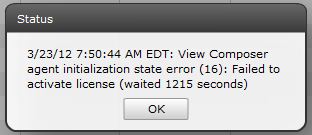
None of these steps helped me fix the problem. The network was fine, the template was clean and was even pulled from a working environment and the guest customization was functioning and joining the machines to the domain with both quickprep and sysprep. Then I noticed the error that appeared when the customization timed out:

View Composer agent initialization state error (16): Failed to activate license (waited 1215 seconds)
So I flung that into google and found Terence Luk’s post about the specifics of this error message. The short version is chances are your VM’s install of Windows isn’t activated by whatever means. After reading through Terence’s article, I realized it must be a problem with the KMS server. I ran the command:

slmgr.vbs /dlv

from one of the machines and sure enough it wasn’t activated because there was no KMS server in my test domain.

Rather than standing up a separate KMS for my little test environment, I simply configured the base image to use use an existing KMS I have configured on the LAN by pointing my base image it to it.

slmgr.vbs /skms <IP address>

Then I ran an ATO to force KMS activation.

slmgr.vbs /ato

After running those commands pointed at a valid KMS server and taking another snapshot, the same templates and configuration spins up like a charm with both linked clones and full machines. Thanks to Terence for posting up originally!

****

Added 8/23/2013

If you’re here and you’re looking to work around this error for your test lab, definitely check out this post, which goes over how to change a simple View agent reg-key that will bypass the license check.

http://www.seancrookston.com/blog/2011/01/27/failed-to-activate-the-software-license-workaround-vmware-view/comment-page-1/#comment-33338


****

Added 12/2/2014

I also ran into a situation where deploying an unpatched Windows XP SP3 machine would fail due to inability to join the domain. Resolution is either get off that dog XP, install a MS patch or remove “Protect from Accidental Deletion” flag on the OU.

http://kb.vmware.com/selfservice/search.do?cmd=displayKC&docType=kc&docTypeID=DT_KB_1_1&externalId=1027087


Change SATA operation to AHCI during OSD

So I ran into an interesting situation when we started deploying Windows 7 out via OSD to Windows XP boxes recently. There were some PCs that would take FOREVER to download the image, which would actually end up failing the task sequence. What I ended up finding out was that these computers (Dell Optiplex 960’s) were set to use IDE in the BIOS, which set me out on the task of finding the fastest way to add a step to my task sequence to modify the BIOS during an OSD pushed OS upgrade. I looked into modifying the PE so that the change could be done from the BIOS, but in the time constraint I was working under I ended up simply installing the Dell Open Manage Client Instrumentation 8 (available here) on the Windows XP workstation and changing it before it was shut down as a part of the task sequence.

First, I created a task folder that checked if it was a 960 using a WMI model query:

Select * From Win32_ComputerSystem WHERE Model LIKE “%optiplex 960%”

Then I installed the open manage client, then set the bios. My command lines for my 2 tasks were:

OM_APP_WIN_R300391.EXE /s

And

cscript.exe OMCI_SATA_Operation.vbs 4

The referenced OMCI_SATA_Operation.vbs script is actually a modified script file (Original name is OMCI_BIOS_ACHI.vbs) available in the package files of the open manage client. When running this script, the option 4 was used to set it to AHCI.

And presto! Since I had to gather information from the OS that was about to be reimaged anyway, this was an option for me. However, for other options like USB deployment and situations where the pre-existing OS might not be available, this will not be the best option. This was a quick and dirty method, but worked during the rollout.

Here is the modified script text:

‘**********************************************************************
‘*** Name: OMCI_BIOS_AHCI.vbs
‘*** Purpose: To clear the chassis intrusion status on a Dell OMCI client.
‘*** Usage: cscript.exe //nologo OMCI_BIOS_AHCI.vbs <systemname>
‘***
‘*** This sample script is provided as an example only, and has not been
‘*** tested, nor is warranted in any way by Dell; Dell disclaims any
‘*** liability in connection therewith. Dell provides no technical
‘*** support with regard to such scripting. For more information on WMI
‘*** scripting, refer to applicable Microsoft documentation.

‘*** NOTE: Replace <Password> in line 57 (inside the quotes)
‘*** with the desired values if there is any password set in the system.
‘*** If both passwords(Admin and Boot) are set please replace it with Admin Password.
‘*** If there is no password set in the system please leave it as empty.
‘**********************************************************************

Option Explicit

‘*** Declare variables
Dim strNameSpace
Dim strComputerName
Dim strClassName
Dim strKeyValue
Dim objInstance
Dim strPropName
Dim strPropValue
Dim oInParams
Dim objWMIService
Dim returnValue
Dim ColSystem
Dim strAttributeName(2)
Dim strAttributeValue(2)

‘*** Check that the right executable was used to run the script
‘*** and that all parameters were passed
If (LCase(Right(WScript.FullName, 11)) = “wscript.exe” ) Or _
(Wscript.Arguments.Count < 1) Then
Call Usage()
WScript.Quit
End If
‘*** Initialize variables
strNameSpace = “root/dcim/sysman”
strComputerName = “.”
strClassName = “DCIM_BIOSService”
strAttributeName(0) = “Embedded SATA Controller”
strAttributeValue(0) = WScript.Arguments(0)

‘*** All possible values for Embedded SATA Controller are as follows:
‘*** Possible values are:
‘*** 1 – Off
‘*** 3 – ATA
‘*** 4 – AHCI
‘*** 5 – RAID

returnValue = 0
‘*** Retrieve the instance of DCIM_BIOSService class
Set objWMIService = GetObject(“winmgmts:{impersonationLevel=impersonate,” &_
“AuthenticationLevel=pktprivacy}\\” & strComputerName & “\” &_
strNameSpace)
Set ColSystem=objWMIService.execquery (“Select * from ” & strClassName)

For each objInstance in ColSystem
Set oInParams= objInstance.Methods_(“SetBIOSAttributes”).InParameters.SpawnInstance_
oInParams.AttributeName = strAttributeName
oInParams.AttributeValue = strAttributeValue
Set returnValue = objInstance.ExecMethod_(“SetBIOSAttributes”, oInParams)
Next

‘*** If any errors occurred, let the user know
If Err.Number <> 0 Then
WScript.Echo “Changing BIOS SATA operation failed.”
End If
‘*** Sub used to display the correct usage of the script
Sub Usage()
Dim strMessage
strMessage = “incorrect syntax. You should run: ” & vbCRLF & _
“cscript.exe /nologo OMCI_SATA_Operation.vbs <Possible Sata Value>. All possible values for Embedded SATA Controller in OMCI 8 are as follows: 1 – Off,3 – ATA, 4 – AHCI, 5 – RAID”
WScript.Echo strMessage
End Sub

SCCM Report Comparing Add/Remove Programs on two Computers

Yes, I know that the builtin Report 97 lists differences between the software inventory reported for two selected computers. BUT! That is not what I want, as this report lists only the discrepancies, and more importantly it is based on software file collection, not for Add/Remove programs. I want a list that shows me what is different (on each computer), and what is the same between two computers in regards to Add/Remove Programs. This SQL query I created utilizes multiple subselect queries and requires 2 prompts. I have found this report to be a great help when troubleshooting, especially when looking at 2 Citrix servers that should be the same and ask myself, what is different?

First, when creating the report, paste in the SQL statement found at the very bottom of this post. Then, click on the Prompts button to open the next dialog.

Click on the New button, which will open the new prompt dialog. We need to create 2 prompts so that we can enter 2 computer names. The first variable we want to enter is Computer1, with Prompt text as shown. Next, we also want to Provide a SQL statement so that we can use wildcards to find our computer names a little easier. Use the following SQL statement for the “Prompt SQL statement”:

begin if (@__filterwildcard = ”)   SELECT DISTINCT SYS.Netbios_Name0 from v_R_System SYS WHERE SYS.Client0=1 ORDER By SYS.Netbios_Name0 else   SELECT DISTINCT SYS.Netbios_Name0 from v_R_System SYS WHERE SYS.Client0=1   and SYS.Netbios_Name0 like @__filterwildcard   ORDER By SYS.Netbios_Name0 end

Afterwards, make another prompt just like above and name it Computer2. When finished, your prompts should look like this.

Hit OK, finish the wizard, and take it for a spin!

************* SQL STATEMENT BELOW HERE ************

SELECT     one.Computer1Name AS [Computer 1 Name], one.Computer1Display AS [Display Name], one.Version0, two.Computer2Name AS [Computer 2 Name],                       two.Computer2Display AS [Display Name], two.Version0 FROM         (SELECT     v_GS_ADD_REMOVE_PROGRAMS.DisplayName0 AS Computer1Display, v_R_System.Netbios_Name0 AS Computer1Name,                                               v_GS_ADD_REMOVE_PROGRAMS.Version0, v_GS_ADD_REMOVE_PROGRAMS.InstallDate0                        FROM          v_GS_ADD_REMOVE_PROGRAMS INNER JOIN                                               v_R_System ON v_GS_ADD_REMOVE_PROGRAMS.ResourceID = v_R_System.ResourceID                        WHERE      (v_R_System.Netbios_Name0 = @Computer1) AND (v_GS_ADD_REMOVE_PROGRAMS.DisplayName0 IS NOT NULL))                       AS one FULL OUTER JOIN                           (SELECT     v_GS_ADD_REMOVE_PROGRAMS_1.DisplayName0 AS Computer2Display, v_R_System_1.Netbios_Name0 AS Computer2Name,                                                    v_GS_ADD_REMOVE_PROGRAMS_1.Version0, v_GS_ADD_REMOVE_PROGRAMS_1.InstallDate0                             FROM          v_GS_ADD_REMOVE_PROGRAMS AS v_GS_ADD_REMOVE_PROGRAMS_1 INNER JOIN                                                    v_R_System AS v_R_System_1 ON v_GS_ADD_REMOVE_PROGRAMS_1.ResourceID = v_R_System_1.ResourceID                             WHERE      (v_R_System_1.Netbios_Name0 = @Computer2) AND (v_GS_ADD_REMOVE_PROGRAMS_1.DisplayName0 IS NOT NULL)) AS two ON                       one.Computer1Display = two.Computer2Display ORDER BY [Computer 1 Name], [Computer 2 Name]

What the HAL is going on with these E6510 and E6410s?

At my place of employment, we recently ran into some issues integrating Dell’s newer model of laptops, the E6510 and the E6410, into our imaging process for the deployment of Windows XP SP3.

We experienced 3 varied issues that are described as follows:

  • ·         The first occurs on both the E6410 and 6510 XP SP3 is related to the ST Micro Accelerometer driver (Version 1.0.0.3 1/4/2010) that is included with the E6510 and E6410 XP SP3 x86 driver cab file downloads. If at any point this driver is installed, regardless of installation method, the system will lock up at shut down and sporadically during startup. Simply disabling this driver in SCCM fixed the issue. I also downloaded this driver individually and ripped it apart. I found that it is the same version and modify date as the one included in the CAB files. I can only tell you what I know, which is I have never seen this driver installed without the side effect of random lock ups. I am assuming this is a problem with the driver. As of now, the workaround is to avoid this driver entirely.
  • ·         The second issue we are experiencing is related only to the E6510 model. When utilizing only the drivers provided in the CAB file, ours locks up during the sysprep process. Reviewing the setupapi.log reveals that it is indeed locking up during the installation of the “Intel(R) Active Management Technology – SOL” (Version 6.0.0.1169 9/17/2009) driver. Disabling this driver in SCCM was a workaround this issue for us and presented a new problem. Now it will finish sysprepping and run the image, however the mouse and keyboard will not work due to an IRQ conflict. We are still troubleshooting this issue with Microsoft, as we are trying to get this driver to install properly.
  • ·         The third issue we are experiencing is related only to the E6410 model. When utilizing only the drivers provided in the CAB file, we experience a lockup when resuming from standby. We are utilizing Intel(R) 82567LM-3 Gigabit Network Connection (Version 11.5.10.0 12/10/2009). We were able to develop a workaround by downloading a later version from the Intel website (Version 11.8.75.0 9/29/2010) and creating a software package for installation, as the driver would not natively plug-n-play for this device. This is a temporary workaround, but we are watching for the latest version to be approved on the Dell website. We found this article to be very useful. http://communities.intel.com/thread/15350?start=0&tstart=0

The root cause ended up being the version of the HAL that was in our base image. You can read up on the different versions here. In short, we were building our gold standard image on Microsoft Virtual PC, which is an addition to Windows 7 and the successor to Virtual PC 2007. When we built our image on the Microsoft Virtual PC, the HAL type chosen by Windows when installing XP SP3 was “Advanced Configuration and Power Interface (ACPI) PC”. Based on some recommendations on the Dell Techcenter site, (Thanks Warren!) and the evidence that others were having success with a HAL switching script, we decided to rebuild our gold standard image on a VMware based machine, which will choose “ACPI Uniprocessor PC”. After we made this change we no longer had the issues listed above. To check what version of the HAL is installed on your installation, you can simply go to device manager, and look under the computer node.