Quick Reference: Path Selection Policy (PSP) Modification via esxcli

Figured I’d write out some of the PSP modification commands I used today so I’d have them for future reference. You can have them too, there’s probably like 10,000 different posts on this already, but this one is mine so I can find it faster. : D

vSphere 4.0 Command-Line Interface Installation and Reference

Page 85 has information specific to changing the path.

Also: Obtaining LUN pathing information for ESX and ESXi Hosts

Also: Command-Line Management in vSphere 5 for Service Console Users

First and foremost, the vSphere Command-Line Interface reference guide does a way better job than me. This is just what I use on a somewhat normal basis, with the differences between 4.0 4.1 and 5.0 5.1 highlighted.

List all paths on 4.0 or 4.1
esxcli nmp path list
List all path for a specific device on 4.0 or 4.1
esxcli nmp device list –device <device ID AKA naa.60060260d0902d002c7449ced32ceaaa>
List all devices on 4.0 or 4.1
esxcli nmp device list
List all unique device PSPs with counts on 4.0 or 4.1
esxcli nmp device list | grep “Path Selection Policy:” | sort  |uniq –c

image
List all unique working Paths with counts on 4.0 or 4.1
esxcli nmp device list | grep “Working Paths:” |sort |uniq -c
Set pathing policy with 4.0 or 4.1
esxcli nmp device setpolicy –psp VMW_PSP_RR –device <device ID AKA naa.60060160d0902d002c7449ced32ce111>

List all paths on 5.0 or 5.1
esxcli storage nmp path list
List all path for a specific device on 5.0 or 5.1
esxcli storage nmp device list –device <device ID AKA naa.60060260d0902d002c7449ced32ceaaa>
List all devices on 5.0 or 5.1
esxcli storage nmp device list
List all unique device PSPs with counts on 5.0 or 5.1
esxcli storage nmp device list | grep “Path Selection Policy:” | sort |uniq –c
List all unique working Paths with counts on 5.0 or 5.1
esxcli storage nmp device list | grep “Working Paths:” |sort |uniq –c
Set pathing policy with 5.0 or 5.1
esxcli storage nmp device set –psp VMW_PSP_RR –device <device ID AKA naa.60060160d0902d002c7449ced32ce111>

Quickly set pathing policy for all LUNs on 5.0 or 5.1
for i in `ls /vmfs/devices/disks/ | grep naa | grep -v “:”`;
do esxcli storage nmp device set –device $i –psp VMW_PSP_RR; done

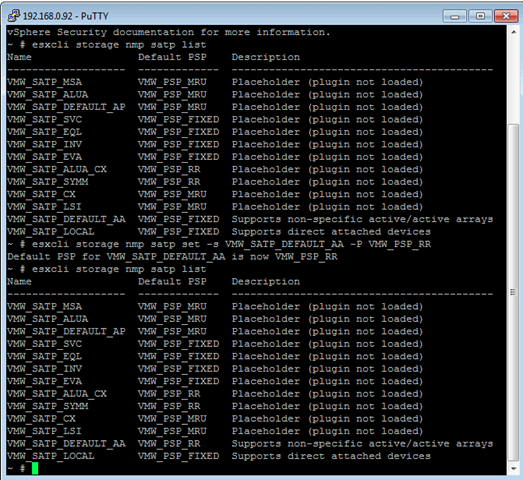
Set the default active active Storage Array Type Plugin to Round Robin
esxcli storage nmp satp set -s VMW_SATP_DEFAULT_AA -P VMW_PSP_RR
Screen Shot 2012-11-01 at 1.31.02 PM

Performing Outage Free Maintenance on View Connection Servers

The question that I had during my View 5.1 ICM class was how to migrate active view sessions from one VMware View connection server to another, so that maintenance can be performed on one of the connection servers. The short version is that you if tunneling is used, you cant. This means that if you reboot your connection server you will drop connections and people will have to reconnect. Not such a huge deal, since if you are running into this scenario, you obviously have at least 2 connection servers which are probably load balanced and the users will simply reconnect.

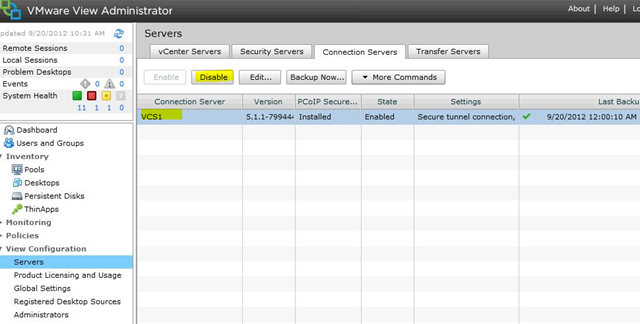
I asked one of my fellow consultants who pointed me to this spot in the documentation. If you disable a connection server within the View Administrative console the active sessions will not be dropped, so it’s basically like doing a “disable logons” in XenApp. I would also then make sure that the load balancing mechanism was pointing only to the connection server that was enabled. This way you can disable a particular connection server the day before and let users gracefully disconnect, providing you have the capacity to be running with one less connection server. Not exactly migrating the session, but it’s better than nothing.

Or you could just send a message from View administrator saying, “You might need to reconnect.” Just food for thought in design.

disable2

VMs getting stuck on Customizing with VMware View 5.0

I ran into this in a test lab environment and figured it would help to share. The View VMs in one of my test labs were hanging on the customization step, both linked clone VMs and full. I started troubleshooting and came across a couple pertient articles and really good ideas when this happens. The KB article on VMware’s site in regards to this problem highlights a few steps:

  1. Make sure the network is functioning between the desktops and the connection servers, DNS must resolve both ways and the required ports must be open. (see here)
  2. Verify that the template has been set up correctly (see here)
  3. Verify that the guest customization settings are correct and working. (see here)

None of these steps helped me fix the problem. The network was fine, the template was clean and was even pulled from a working environment and the guest customization was functioning and joining the machines to the domain with both quickprep and sysprep. Then I noticed the error that appeared when the customization timed out:

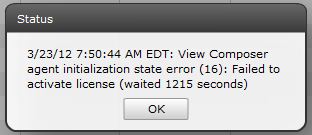
View Composer agent initialization state error (16): Failed to activate license (waited 1215 seconds)

So I flung that into google and found Terence Luk’s post about the specifics of this error message. The short version is chances are your VM’s install of Windows isn’t activated by whatever means. After reading through Terence’s article, I realized it must be a problem with the KMS server. I ran the command:

slmgr.vbs /dlv

from one of the machines and sure enough it wasn’t activated because there was no KMS server in my test domain.

Rather than standing up a separate KMS for my little test environment, I simply configured the base image to use use an existing KMS I have configured on the LAN by pointing my base image it to it.

slmgr.vbs /skms <IP address>

Then I ran an ATO to force KMS activation.

slmgr.vbs /ato

After running those commands pointed at a valid KMS server and taking another snapshot, the same templates and configuration spins up like a charm with both linked clones and full machines. Thanks to Terence for posting up originally!

****

Added 8/23/2013

If you’re here and you’re looking to work around this error for your test lab, definitely check out this post, which goes over how to change a simple View agent reg-key that will bypass the license check.

http://www.seancrookston.com/blog/2011/01/27/failed-to-activate-the-software-license-workaround-vmware-view/comment-page-1/#comment-33338


****

Added 12/2/2014

I also ran into a situation where deploying an unpatched Windows XP SP3 machine would fail due to inability to join the domain. Resolution is either get off that dog XP, install a MS patch or remove “Protect from Accidental Deletion” flag on the OU.

http://kb.vmware.com/selfservice/search.do?cmd=displayKC&docType=kc&docTypeID=DT_KB_1_1&externalId=1027087