Change a Computer’s OU during an OSD Task Sequence

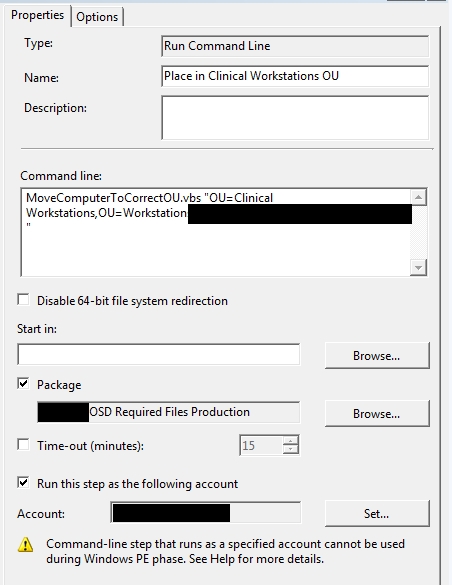
I came across a situation when testing pushing re-images out with SCCM where I needed to ensure that the old computer object had been moved to the new OU that I specified. This is because even though I specified what OU I wanted the computer to be moved to during the “Apply Network Settings” task, the computer object wasn’t moved because the object already existed. I downloaded and modified Jakob’s vb script MoveOU.vbs which accepts the target OU as an argument.

The caveat with this script is that that since it needs to be run with an AD account that has rights to move the computer object, it cannot be run while the PC is in the PE, so it has to be run after the computer has been sysprepped and has booted from the OS that was dropped to the disk. Not a big deal, since we want the script to be successful even on new images where there isn’t an existing computer record. Here is an example command line usage:

MoveOU.vbs “OU=Marketing Department,OU=Workstations,DC=CONTOSO,DC=COM”

Add a CSV list of users to an AD group with powershell

I love Quest’s powershell cmdlets for AD. They have added a ton of productivity improvement to my life. Since I was used to writing scripts in VB and using dsquery and dsmod, it wasn’t a fast process, but eventually I started to get the hang of the syntax and boolean changes. Here is one quick super easy script that has recently saved me a bunch of time. Keep in mind you have to have the Active Roles Management Shell for AD installed, which is a free plugin released by Quest, otherwise you won’t be able to add the snapin with the first line.

add-PSSnapin quest.activeroles.admanagement -erroraction SilentlyContinue
Get-Content “C:\Powershell\listofusers.csv” | Add-QADGroupMember “Security Group Name”

All that is in that CSV is a list of SAM account names in the first column. Quick and easy.

VMs getting stuck on Customizing with VMware View 5.0

I ran into this in a test lab environment and figured it would help to share. The View VMs in one of my test labs were hanging on the customization step, both linked clone VMs and full. I started troubleshooting and came across a couple pertient articles and really good ideas when this happens. The KB article on VMware’s site in regards to this problem highlights a few steps:

  1. Make sure the network is functioning between the desktops and the connection servers, DNS must resolve both ways and the required ports must be open. (see here)
  2. Verify that the template has been set up correctly (see here)
  3. Verify that the guest customization settings are correct and working. (see here)

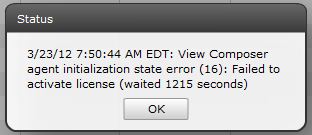
None of these steps helped me fix the problem. The network was fine, the template was clean and was even pulled from a working environment and the guest customization was functioning and joining the machines to the domain with both quickprep and sysprep. Then I noticed the error that appeared when the customization timed out:

View Composer agent initialization state error (16): Failed to activate license (waited 1215 seconds)

So I flung that into google and found Terence Luk’s post about the specifics of this error message. The short version is chances are your VM’s install of Windows isn’t activated by whatever means. After reading through Terence’s article, I realized it must be a problem with the KMS server. I ran the command:

slmgr.vbs /dlv

from one of the machines and sure enough it wasn’t activated because there was no KMS server in my test domain.

Rather than standing up a separate KMS for my little test environment, I simply configured the base image to use use an existing KMS I have configured on the LAN by pointing my base image it to it.

slmgr.vbs /skms <IP address>

Then I ran an ATO to force KMS activation.

slmgr.vbs /ato

After running those commands pointed at a valid KMS server and taking another snapshot, the same templates and configuration spins up like a charm with both linked clones and full machines. Thanks to Terence for posting up originally!

****

Added 8/23/2013

If you’re here and you’re looking to work around this error for your test lab, definitely check out this post, which goes over how to change a simple View agent reg-key that will bypass the license check.

http://www.seancrookston.com/blog/2011/01/27/failed-to-activate-the-software-license-workaround-vmware-view/comment-page-1/#comment-33338


****

Added 12/2/2014

I also ran into a situation where deploying an unpatched Windows XP SP3 machine would fail due to inability to join the domain. Resolution is either get off that dog XP, install a MS patch or remove “Protect from Accidental Deletion” flag on the OU.

http://kb.vmware.com/selfservice/search.do?cmd=displayKC&docType=kc&docTypeID=DT_KB_1_1&externalId=1027087


Change SATA operation to AHCI during OSD

So I ran into an interesting situation when we started deploying Windows 7 out via OSD to Windows XP boxes recently. There were some PCs that would take FOREVER to download the image, which would actually end up failing the task sequence. What I ended up finding out was that these computers (Dell Optiplex 960’s) were set to use IDE in the BIOS, which set me out on the task of finding the fastest way to add a step to my task sequence to modify the BIOS during an OSD pushed OS upgrade. I looked into modifying the PE so that the change could be done from the BIOS, but in the time constraint I was working under I ended up simply installing the Dell Open Manage Client Instrumentation 8 (available here) on the Windows XP workstation and changing it before it was shut down as a part of the task sequence.

First, I created a task folder that checked if it was a 960 using a WMI model query:

Select * From Win32_ComputerSystem WHERE Model LIKE “%optiplex 960%”

Then I installed the open manage client, then set the bios. My command lines for my 2 tasks were:

OM_APP_WIN_R300391.EXE /s

And

cscript.exe OMCI_SATA_Operation.vbs 4

The referenced OMCI_SATA_Operation.vbs script is actually a modified script file (Original name is OMCI_BIOS_ACHI.vbs) available in the package files of the open manage client. When running this script, the option 4 was used to set it to AHCI.

And presto! Since I had to gather information from the OS that was about to be reimaged anyway, this was an option for me. However, for other options like USB deployment and situations where the pre-existing OS might not be available, this will not be the best option. This was a quick and dirty method, but worked during the rollout.

Here is the modified script text:

‘**********************************************************************
‘*** Name: OMCI_BIOS_AHCI.vbs
‘*** Purpose: To clear the chassis intrusion status on a Dell OMCI client.
‘*** Usage: cscript.exe //nologo OMCI_BIOS_AHCI.vbs <systemname>
‘***
‘*** This sample script is provided as an example only, and has not been
‘*** tested, nor is warranted in any way by Dell; Dell disclaims any
‘*** liability in connection therewith. Dell provides no technical
‘*** support with regard to such scripting. For more information on WMI
‘*** scripting, refer to applicable Microsoft documentation.

‘*** NOTE: Replace <Password> in line 57 (inside the quotes)
‘*** with the desired values if there is any password set in the system.
‘*** If both passwords(Admin and Boot) are set please replace it with Admin Password.
‘*** If there is no password set in the system please leave it as empty.
‘**********************************************************************

Option Explicit

‘*** Declare variables
Dim strNameSpace
Dim strComputerName
Dim strClassName
Dim strKeyValue
Dim objInstance
Dim strPropName
Dim strPropValue
Dim oInParams
Dim objWMIService
Dim returnValue
Dim ColSystem
Dim strAttributeName(2)
Dim strAttributeValue(2)

‘*** Check that the right executable was used to run the script
‘*** and that all parameters were passed
If (LCase(Right(WScript.FullName, 11)) = “wscript.exe” ) Or _
(Wscript.Arguments.Count < 1) Then
Call Usage()
WScript.Quit
End If
‘*** Initialize variables
strNameSpace = “root/dcim/sysman”
strComputerName = “.”
strClassName = “DCIM_BIOSService”
strAttributeName(0) = “Embedded SATA Controller”
strAttributeValue(0) = WScript.Arguments(0)

‘*** All possible values for Embedded SATA Controller are as follows:
‘*** Possible values are:
‘*** 1 – Off
‘*** 3 – ATA
‘*** 4 – AHCI
‘*** 5 – RAID

returnValue = 0
‘*** Retrieve the instance of DCIM_BIOSService class
Set objWMIService = GetObject(“winmgmts:{impersonationLevel=impersonate,” &_
“AuthenticationLevel=pktprivacy}\\” & strComputerName & “\” &_
strNameSpace)
Set ColSystem=objWMIService.execquery (“Select * from ” & strClassName)

For each objInstance in ColSystem
Set oInParams= objInstance.Methods_(“SetBIOSAttributes”).InParameters.SpawnInstance_
oInParams.AttributeName = strAttributeName
oInParams.AttributeValue = strAttributeValue
Set returnValue = objInstance.ExecMethod_(“SetBIOSAttributes”, oInParams)
Next

‘*** If any errors occurred, let the user know
If Err.Number <> 0 Then
WScript.Echo “Changing BIOS SATA operation failed.”
End If
‘*** Sub used to display the correct usage of the script
Sub Usage()
Dim strMessage
strMessage = “incorrect syntax. You should run: ” & vbCRLF & _
“cscript.exe /nologo OMCI_SATA_Operation.vbs <Possible Sata Value>. All possible values for Embedded SATA Controller in OMCI 8 are as follows: 1 – Off,3 – ATA, 4 – AHCI, 5 – RAID”
WScript.Echo strMessage
End Sub