Combine CRT and KEY Files into a PFX with OpenSSL

Say for example you have a .crt and a .key file which had the private key in it. What if you have to combine the .crt and .key file into a password protected .pfx file so that you can import the certificate and private key onto the servers? That’s what I had to do. I’ve tried to make this entry as no-nonsense as possible, so I put together sample screenshots of what the process looks like.

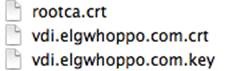
Example files when starting:

vdi.elgwhoppo.com.crt

vdi.elgwhoppo.com.key

First we need to extract the root CA certificate from the existing .crt file, because we need this later. So open up the .crt and click on the Certification Path tab.

clip_image002

Click the topmost certificate (In this case VeriSign) and hit View Certificate. Select the Details tab and hit Copy to File…

clip_image004

Select Base-64 encoded X.509 (.CER) certificate

clip_image006

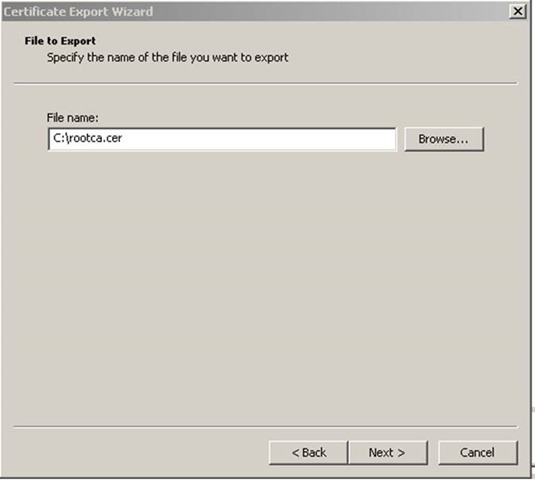
Save it as rootca.cer or something similar. Place it in the same folder as the other files.

clip_image008

Rename it from rootca.cer to rootca.crt

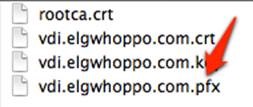
Now we should have 3 files in our folder from which we can create a PFX file.

clip_image010

Here is where we need OpenSSL. We can either download and install it on Windows, or simply open terminal on OSX.

Open terminal on OSX and CD to the directory the files are in. For Windows users, copy and paste the above three files into the default OpenSSL install location on Windows: C:\OpenSSL-Win32\bin. Then open a command prompt and change directories to C:\OpenSSL-Win32\bin. From this point the commands are the same.

We can see the three files.

clip_image012

The command syntax for my example is:

openssl pkcs12 -export -out vdi.elgwhoppo.com.pfx -inkey vdi.elgwhoppo.com.key -in vdi.elgwhoppo.com.crt -certfile rootca.crt

clip_image014

If everything was entered correctly, you should be prompted to create a password for the PFX file. Enter a password and confirm it. When finished you should have a working PFX file to import on your Windows boxes either via the MMC or IIS. You will need the password when importing the pfx.

clip_image016

Review of VMware Thinapp 4.7 Essentials by Peter Björk

I  recently purchased and tore through an awesome book by Peter Björk, VMware Thinapp 4.7 Essentials. I got a ton out of this book, especially as part of my background was authoring MSI packages with tools like Wise Package Studio and Orca and tons of VB scripts.

The technical depth and procedural “how to do X” knowledge was awesome, not to mention it’s a book that I’ve referenced quite a bit while actually doing some some complicated Thinapps. It’s a great educational read, and it’s a great reference once you’re done with it. As a consultant, Thinapp is one of those things that I crack open every few months or so, and it always seems that something has changed. I think with the advent of Horizon that we will be seeing a lot more applications deployed through Thinapp. This book will definitely help you get on your way to being a master Thinapp packager and help you teach yourself to fish.

Some of the things I personally got out of this book:

  • Methodologies for sizing the sandbox and troubleshooting problem Thinapps.
  • Understanding isolation modes
  • Tips for capturing and updating packages
  • Deployment methods & planning for your target systems (Including Horizon)
  • A full explanation of important utilities such as sbmerge.exe and thinreg.exe
  • Cautions and strategy for deploying applications on 64-bit OS

Highly recommended, especially the Kindle version for me, because I LOVE being able to use CTRL+F when using it as a reference.

VMware View 5.1 and Imprivata Biometric ProveID workflows: Issues with PCoIP.

I ran into an interesting issue recently during a View deployment for a customer that was making use of VMware View 5.1.1, Imprivata OneSign 4.6 Hotfix 11, and Meditech EMR with Forward Advantage’s Authentication Manager product for ProveID.

Now, some of you may not know about this ProveID, what is it, and why are we even bothering it? Well, here in the great state of Ohio (and several other states), doctors and nurses are legally required to prove their identity during an EMR (Electronic Medical Record) clinical workflow which results in either the signing of a medication order or the distribution of a medication. This is because if a nurse or doctor were to leave their workstation unlocked, anyone who could walk up to the workstation could purposefully or accidentally sign a medication order or give a medication, while behaving as someone else. This is ESPECIALLY important when it comes to the authorization of medication. The difference between the great state of Ohio and other states, is that password alone has been deemed by the Ohio Board of Pharmacy not enough security for the ProveID workflow, and that some form of Biometric, Token or other dual-factor authentication is required to ensure that the person is who they say they are. Now, enough of that tangent.

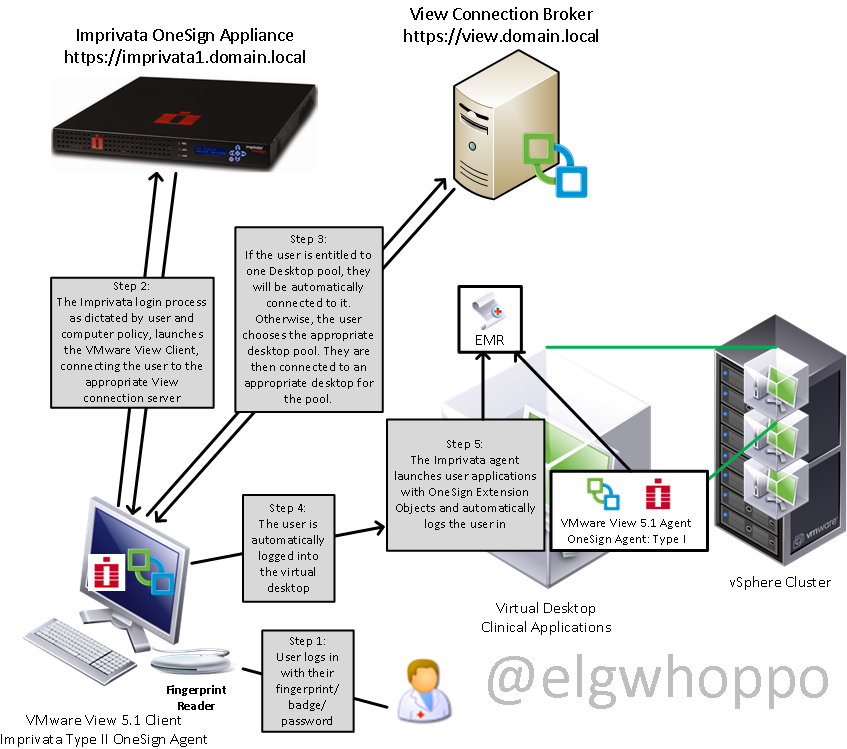
For this particular client, the Windows XP golden images were set, the pools had been configured, and the Imprivata VDI integration module was integrated and activated. Some of you guys who are VMware junkies may not know what functionality the Imprivata product brings to the table. Check out this drawing I made which basically outlines the functionality that it brings from a SSO and Clinical logon workflow perspective. Here is a drawing I put together that shows the average logon process with Imprivata integration.

image

Now, keep in mind, the above flowchart is just the process for getting logged in. That process works just fine regardless of the connection protocol. The next drawing is specifically about what happens when a ProveID event takes place, where a person needs to prove their identity specifically in this case with biometrics. It should be noted that the 3rd party authentication software isn’t always needed if Imprivata has native support for ProveID actions in their application. In this case, a third party product was required.

image

This is how it should look when it is working. The problem I had with the customer was that when using PCoIP, during step #4, where the fingerprint data was being sent back to the VM. Here is where if the virtual channel between the endpoint and the VM was broken, the communication which passes the fingerprint data back would not function, and result in a broken workflow and a “disconnected fingerprint reader” error message in the VM. Another impact of the virtual channel breaking was that if a lock command was sent to the VM, it would only lock the VM and not the endpoint. We often found that when the error was occurring sporadically, it most frequently occurred the first time that a user logged onto a VM that they hadn’t previously logged onto, but individual results varied.

  • First we tried using the OneSign 4.6 HF11 agent and a Windows XP View 5.1.1 pool with PCoIP as the required protocol. ProveID did not function with the biometric readers.
  • Second, we tried using the OneSign 4.6 HF11 agent and a Windows XP View 5.1.1. pool with RDP as the required protocol. ProveID did not function with the biometric readers.
  • Third, we tried using the OneSign 4.6 HF5 agent and a Windows XP View 5.1.1 pool with PCoIP as the default protocol. ProveID sporadically functioned with the biometric readers.
  • Finally, we tried using the OneSign 4.6 HF5 agent and a Windows XP View 5.1.1 pool with RDP as the default protocol. ProveID consistently functioned as shown in the workflow above.

At least in the situation I was in, I believe we isolated the issue down to a defect with the Imprivata agent that is only exposed when using VMware View 5.1.1 Windows XP pools with PCoIP, and Biometrics for ProveID workflows. The ticket with Imprivata is still open, so the jury is still out, but I think we narrowed it pretty far.

Also as a bonus:

Don’t forget what PCoIP looks like from a stack perspective. To get a quick look at what the PCoIP network stack looks like, check out this article that Andre Leibovici,wrote on disabling the clipboard transfer with View, there is a great graphic on there that highlights how it’s broken down. http://myvirtualcloud.net/?p=927

Hope this helps someone understand the madness that is the ProveID workflow shanagins. I will post an update when we get a final answer as to the root cause.

** Update **

This ultimately was happening because Imprivata 4.6 HF11 was not yet certified for VMware View 5.1.1. After talking to a friend of mine who attended HIMMS, I learned View 5.1.2 it is currently scheduled to be certified by mid-april.

Using pfSense for QoS at a LAN Party: Nerfing the Steam downloads and HTTP traffic

9/4/2013 Edit: Check out the latest version of the config at the following post here:

https://elgwhoppo.com/2013/09/04/pfsense-lan-party-qos-1-3-individually-limited-tcp-streams/

****

Some of you may know that although I’m an IT consultant by day, I’m also an avid PC gamer by pretty much any other time. I run a small LAN party called ForgeLAN in Northeast Ohio. Since I run the LAN out of my Church, the internet connection can be a bit of an issue. There isn’t exactly a business case to pay for a 50/10 pipe, which is a huge problem when it comes to getting 30 guys together and all sharing an itty bitty 7/1 connection, and trying to play games that require internet connectivity to play together like Starcraft II and League of Legends.

The reason I am writing this post is because nowhere could I find a plain english simple walkthrough and sample posting of sample traffic shaping configuration that would allow download traffic to use the entire link, but always prioritize gaming traffic. I tried using a couple automated native solutions like D-Link’s Gamefuel QoS on a DGL-4500 that I picked up on eBay, but there was no way to configure the port ranges and assign percentages for utilization. As a result, anytime someone was downloading from Steam the latency for gaming traffic was absolutely squeezed out, giving players almost 400 ms of latency which makes games unplayable.

Before we get started, let me be perfectly clear, I am not a pfSense expert by any means. I will simply be posting my configs and explaining what I ended up doing to make a 7/1 network connection work for a 25-30 person sized LAN, which meant throttling down HTTP and Steam downloads so that gaming traffic goes uninterrupted.

Choosing the Physical PC

First, you need to actually have an old PC that at least has 2 NICs that will be the dedicated pfSense box. This PC will be what takes the place of your router, or in my case the Dlink DGL-4500. The reason it needs 2 NICs is because you will need one to be your WAN interface, and one to be your LAN interface. The nice part is that the WAN interface can be a 10/100 link, but definitely make the LAN interface 10/100/1000. There is a way of actually using two internet modems together to loadbalance traffic between two of them, but that’s out of scope for this free post. : D  You don’t even really need a hard drive in the computer you want to use, because you can boot from the pfSense CD, then restore the configuration from the web interface. Granted, you’ll lose all configuration changes if you lose power, so I’d recommend finding an older hard drive or partitioning the one you have so that configurations are committed. That way you can actually install pfSense to a disk.

Getting pfSense

If you want the official install thread, here’s the link. I have no guarantees on mine, riddled with whatever errors I happen to capture : D http://doc.pfsense.org/index.php/Installing_pfSense#pfSense_default_configuration

Download the pfsense iso from here: http://www.pfsense.org/mirror.php?section=downloads

32-Bit LiveCD: pfSense-LiveCD-2.0.2-RELEASE-i386.iso.gz

64-Bit LiveCD: pfSense-LiveCD-2.0.2-RELEASE-amd64.iso.gz

FWIW, I ran into an unexplained issue where the DNS forwarder would just stop working for no reason on 2.0.1. Nothing in the logs, nothing. So, if I were you, stick with 2.0.2.

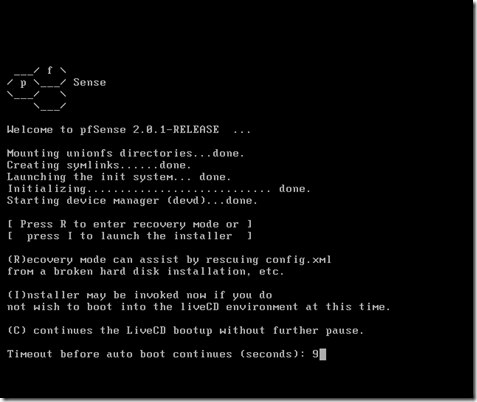
Extract the ISO with a program like 7zip or WinRAR, and burn it to CD and boot to it. During the boot up process, if you just let it boot normally it will skip past the installation screen, but at one point shown below you can push I, which will kick off the installation portion of the boot up sequence. You can also do this later from the direct console interface using option 99.
image

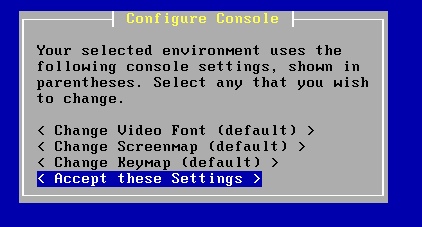
Lets assume that you’re going to take my advice and install to a hard drive. Hit I at the screen above. Next, I arrowed down 3 times and accept the default settings,

image

Following my mantra of keeping it simple, I opted for the quick/easy install. If you want to choose a partition or have multiple hard drives, I’d recommend using the custom install or only having one drive connected when you perform the installation. It’ll install by default on the first drive, but still better safe than sorry.

image

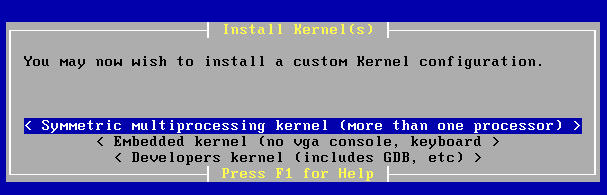
Once finished, I installed SMP.

image

Now reboot and remove the CD once the boot process has started. You’ve now installed pfSense and are ready for configuration.

Configuration of pfSense

So for easy peasyness, start with all ethernet unplugged. This way you will be able to identify what network port corresponds with which port ID assignment, such as em0, sk0. In my example, I have 2 ethernet adapters em0 and em1.

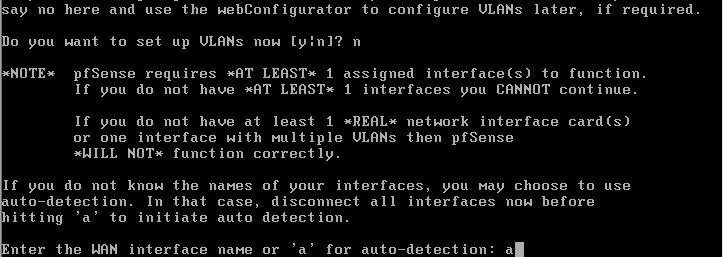
Say N on the setting up VLANs now:

image

At this point you can either enter the interface name, or you can use auto detection. I like auto detection because then you don’t have to worry about being sure which is which, especially if you have a dual port NIC. Hit A then enter
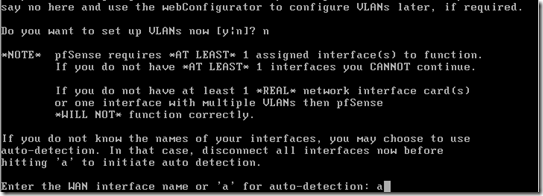
image

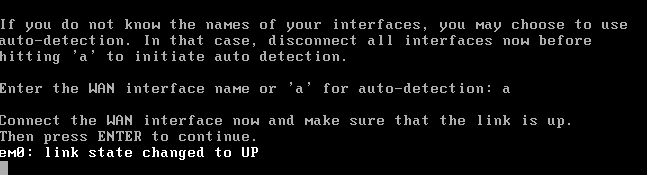
Now, connect the ethernet adapter that you want to be the WAN interface and it will change to up. Then hit enter.

image

Now do the same thing with the LAN adapter:
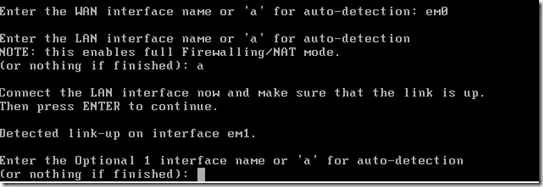
image

image

Ready to rock. Now let’s give the LAN adapter an IP address on a private block, I like to use 10.0.0.0/24, because in my lab, the 192.168.0 subnet is actually my internal network, but for the sake of demonstration it’s acting like my WAN connection. Choose option 2, and hit enter.

image

2, choose LAN, enter the IP address, enter the subnet mask length, (24 = 255.255.255.0), enable DHCP, choose the range,

image

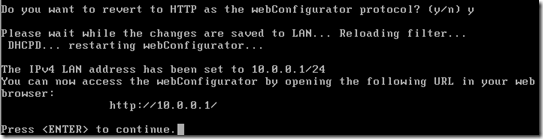
Choose yes for the webConfigurator protocol revert, then hit enter. Now, connect a PC either directly to the LAN port or connect the LAN port to a switch, and connect a PC in. It should have an IP address on the 10.0.0.10-254 IP range.
image

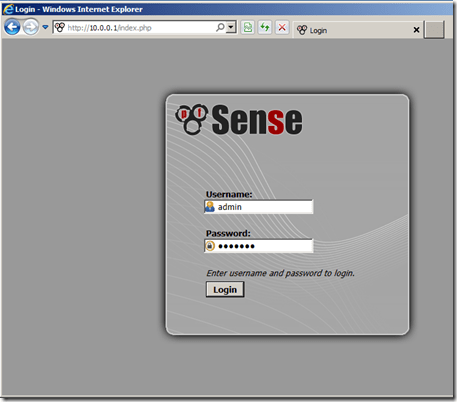
Cool, now we have 2 IP’d addresses, the DHCP server is set up on the LAN interface and we can connect to 10.0.0.1 with a web browser. OK, so now I have a DHCP assigned address on my machine that’s connected to the LAN port. So now we can get to the webpage of the pfSense, logging in with the default credentials of admin / pfsense.
image

Configuring the QoS for Gaming

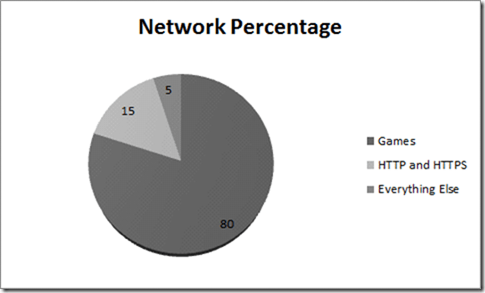
Lets talk about this in theory. If you’re following along with me at this point, chances are you want the simple explanation for this, I know I did. So basically, what I wanted to set up was something like this:
image

So there are two steps , first I had to define “queues”, which are basically define the service, and the priority. For example, I created a games queue and specified that it should have a high percentage of bandwidth. Next I had to define firewall rules, which basically say, TCP Port 1119 for Starcraft, make sure you are in the games queue. If you look at the configs up to this point, this is what you’ll see.

image

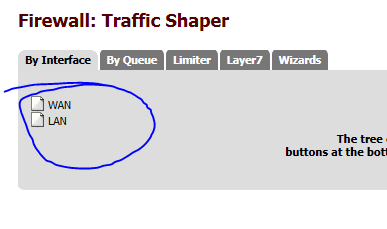
We can see that there’s only two shaper interfaces with no queues on either WAN and LAN. We’ll look at what this means here in a bit.
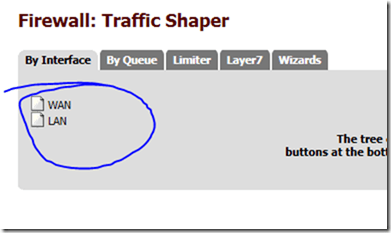
image

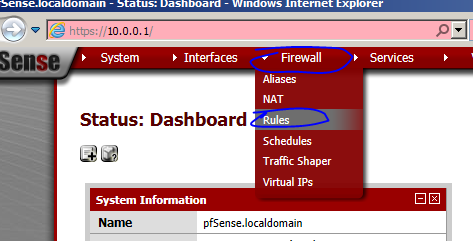
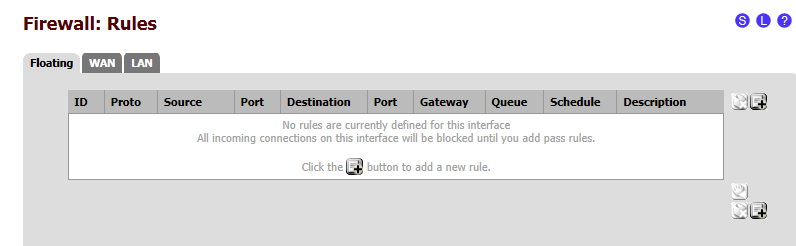
We can also see that there are no rules if we click on Firewall > Rules, then click on the Float Tab.

image

We can see that there’s no rules defined.
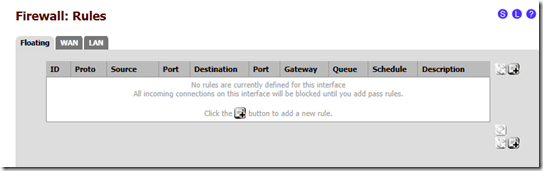
image

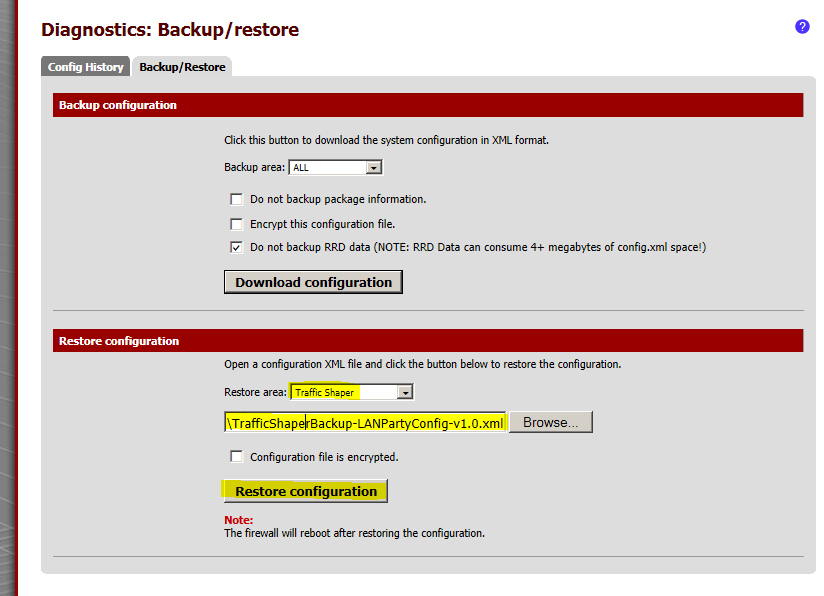
Now let’s restore the backup of the two different configs I have uploaded, one for firewall rules, the other for shaper configuration.

image

The traffic shaper config backups which are versioned, are available online right here:

TrafficShaperBackup-LANPartyConfig-v1.0.xml

TrafficShaperBackup-LANPartyConfig-v1.1.xml

TrafficShaperBackup-LANPartyConfig-v1.2.xml

v1.1 Changes:

The configs included in this download are for a 7/1 internet connection with the following percentages allocated:

qPremiumGames – 60%, at least 3Mb allocated at all times for gaming

qMedium – 30% available bandwidth

qSteamDownload – 8% available bandwidth

qNerfed – 2% available bandwidth, limited to 500 packets per second. Default queue, AKA, all traffic not matching a firewall rule goes here.

v1.2 Changes:

Combined HTTP and Steam traffic queues

Changed queues to use only percentages (with the exception of internet and WAN)

image

Then the firewall rule backups which are versioned, are available online right here:

FirewallRulesBackup-LANPartyConfig-v1.0.xml

FirewallRulesBackup-LANPartyConfig-v1.1.xml

FirewallRulesBackup-LANPartyConfig-v1.2.xml

1.1 Changes: LoL and SC2 updates, added TCP and UDP rules. Added some additional rules.

1.2 Changes: Matching the new queue names
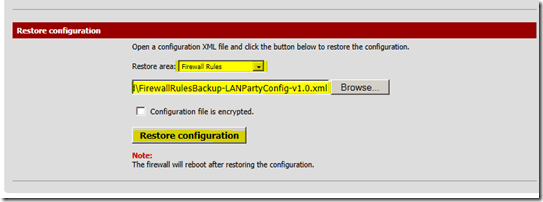
image

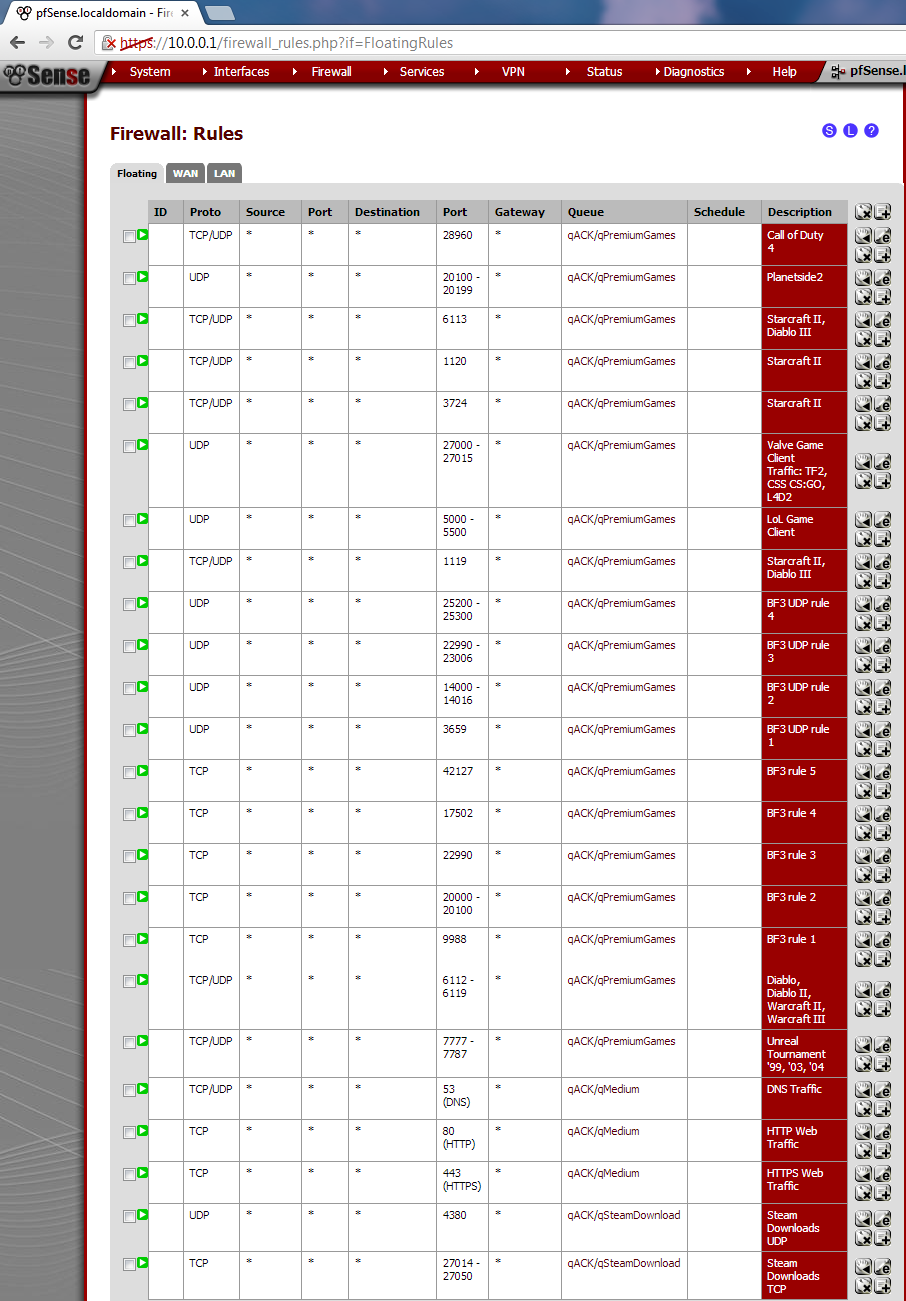
then reboot the router. If we now navigate back to the Firewall > Rules page, then click on the Floating tab, we can see that we have a lot of gaming traffic rules that I’ve pre-populated, along with HTTP and steam downloads.

FWrules

Then if we click on the the Firewall > Traffic Shaper page, we can see the list of shaper queues.

queues

The important part is now looking at what we’ve configured in these queues, as this is where the QoS really is brought into play. There are two different logical ways to order the shaping.

1. Statically setting the rates for HTTP and Steam Downloads

We can specifically nerf the HTTP and Steam downloads by specifying the maximum % or Mb each traffic type will get. The problem with this method is, if someone absolutely needs to download, (for example, you restore a current steam backup, but a small 70Mb download is still required) you might potentially be wasting bandwidth capping the downloads at a rate slower than otherwise could be. For example on this 7/1 internet conenction, by viewing the queues by going to Status > Queues, we can see that the http traffic is nerfed at 1.65Mb/sec, even though there’s pretty much nothing else being used. Not exactly efficient use of the bandwidth. This method is very static, and not all that flexible. But, it works very well if you can stomach inefficiency.

capped

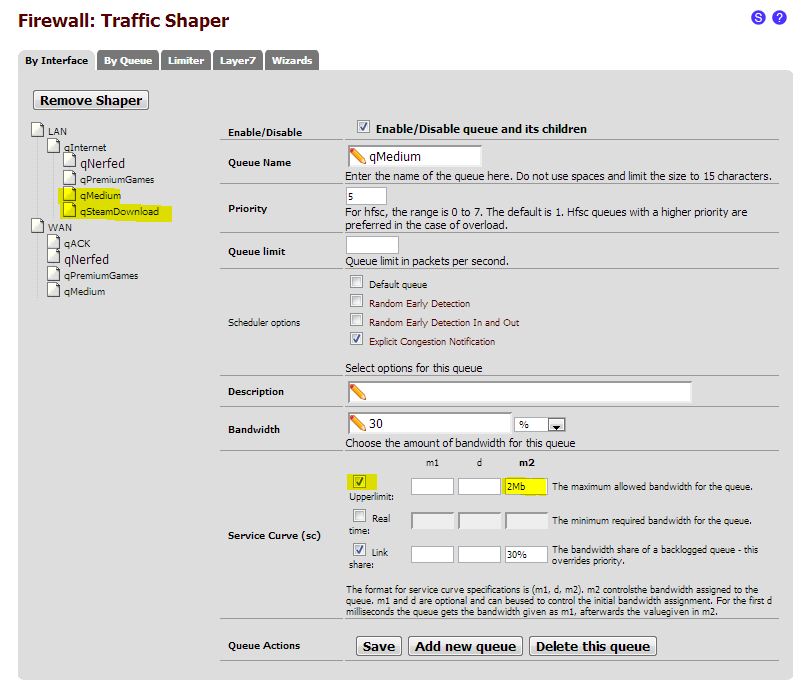
If you wanted to configure a static maximum for qMedium and qSteamDownload, you’d set tick the upperlimit box and set the m2 field as either 2Mb, or 30%. That way, it could never go above that static amount whether specific amount or percentage you set. This is how to do method 1.

key

2. Guarantee the total amount of bandwidth for gaming Traffic that cannot be used for anything else.

If you wanted to configure a required minimum amount of available bandwidth for qPremiumGames, you’d set tick the real time box and set the m2 field as either 2Mb, or 30%. That way, the bandwidth allocated is set aside specifically for gaming without having to set a hard upper-limit on the other queues. This is how to do method 2.
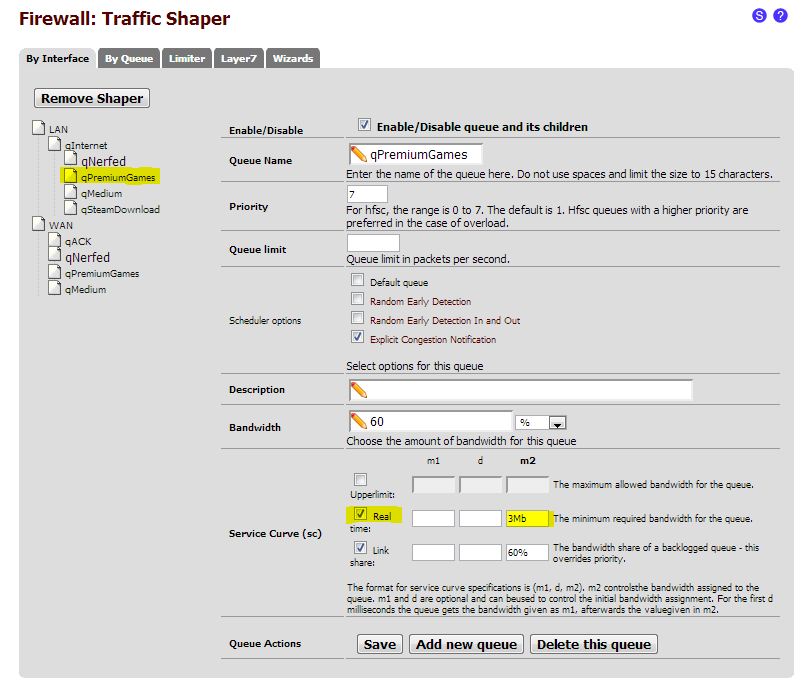
key2

Now, you can watch this video I made which showcases and demonstrates what happens when you have 3 computers sharing a link, one that is downloading Steam, one that is Downloading a Linux distro, and one that is trying to play PC games Team Fortress 2 and Diablo III, both with and without the traffic filtering. This video highlights method 1. I should soon be doing another video that highlights method 2.

Method 1

Using pfSense to Throttle Downloads for LAN Party Traffic from Joe Clarke on Vimeo.

Method 2

Intermittent Network Connectivity with ESXi 5.0 and DL380p Gen8 Servers with 331FLR NICs

So, I was recently troubleshooting some interesting intermittent network connectivity. Here’s the layout:

Upon examination of the environment, the following issues presented on three hosts in the problem cluster contained only of new Gen8 DL380p servers running ESXi 5.0.0:

  • CDP was not functioning on two vSwitch network uplinks that were not trunked and plugged into physical ports in access mode
  • CDP was sporadically functioning on portgroups with VLAN tagging;
  • The observed IP address ranges on the network adapters kept changing every 10 minutes or so
  • VM traffic was intermittently failing entirely (without a presenting failure of the network link)
  • The VMkernel log was filled with messages pertaining to the NetQ feature
  • No changes were being made on the physical network switches and the physical switches were configured properly
  • The tg3 driver version of the 331FLR was 3.123b.v50.1-1OEM.500.0.0.472560

Articles of Note:

These symptoms exactly describe the problem highlighted in the article, and would be especially highlighted in a VMware cluster with high network utilization, which is  exactly the case in the environment I was troubleshooting.

We followed the article’s recommendation and performed the following workaround:
Disabled the NetQ on the network adapter on one of the hosts following the official KB
Verified from the command line that NetQ was disabled
Verified that the vmkernel log was not filling with messages pertaining to the NetQ feature
Tested Ping traffic on a test VM on the host that we disabled NetQ on, there were no ping drops
vMotioned the test VM to a host, which at the time had NetQ enabled, and saw several ping drops
vMotioned the test VM back and saw no network packets were dropped after the vMotion was completed

The question I had for VMware support, was does the updated version of the driver linked above (tg3-3.123b.v50.1-682322.zip) permanently address this issue?

The response was:

Since the release notes for the updated driver (tg3-3.123b.v50.1-682322.zip) above make no mention of fixing this specific issue, we have to assume that the updated driver does not permanently remediate the situation. This means the only method of addressing this issue is to do exactly what we have already done in the documented workaround. VMware still recommended updating the driver simply for the sake of being on the latest version, but that it will not specifically address the issue.

Release notes:

v3.123b (April 03, 2012)
========================
    Fixes
    —–
        1) Problem: (CQ62172) 5720 hangs when running software iSCSI with
                    TSO enabled.
           Cause  : TSO packets with total size equal to or bigger than 64K
                    are transmitted in this setup.  Hardware has a limitation
                    that individual BDs cannot approach 64K in TSO.
           Change : Set dma_limit to 32K for all TSO capable chips when
                    compiled for VMWare.  Driver will break up any BDs bigger
                    than 32K.  Linux limits TSO size to less than 64K, so no
                    workaround is needed.
           Impact : All TSO capable chips under VMWare.

    Enhancements
    ————
        1) Change : Added psod_on_tx_timeout parameter for VMWare debugging.
           Impact : None.