SCCM 2012 Application Catalog Website: “Make sure WCF is activated” and .NET Unhandled Exceptions

In my brand new environment I am happily installing the marvelous SCCM features when from nowhere I have difficulty adding the application catalog website role to my single server standalone primary site. What in the world. I see two repeating errors:

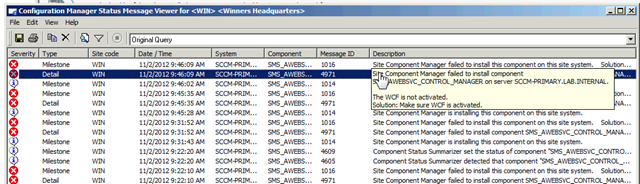
Site Component Manager failed to install component

The WCF is not activated

Solution: Make sure the WCF is activated.
Screen Shot 2012-11-02 at 10.02.10 AM

Screen Shot 2012-11-02 at 10.05.33 AM

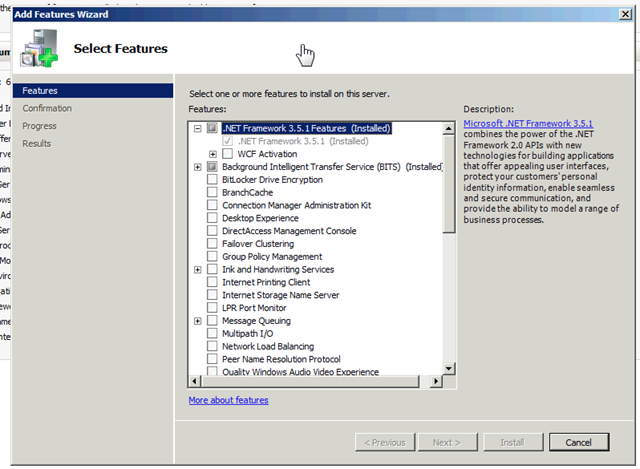
I start looking around and realize that I’ve forgotten to include the WCF service as a part of the .NET framework installation.
Screen Shot 2012-11-02 at 10.03.22 AM

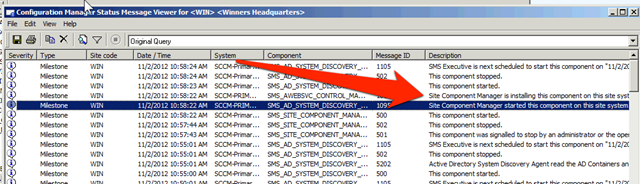
I install the feature and both subfeatures, then open the CM service manager and restart the SMS_SITE_COMPONENT_MANAGER service so that the installation will immediately restart, or I could have waited 60 minutes and viola!

Screen Shot 2012-11-02 at 10.58.46 AM

Success!

image

Or so I thought….after it was successfully installed I was getting unhandled exception .NET errors when attempting to browse to the CMApplicationCatalog website.

Could not load type ‘System.ServiceModel.Activation.HttpModule’ from assembly ‘System.ServiceModel, Version=3.0.0.0, Culture=neutral, PublicKeyToken=b77a5c561934e089’.

Screen Shot 2012-11-02 at 11.21.37 AM

DOH! I forgot to register the .NET Framework 4.0 components like a big fool. Props to Russ Rimmerman for posting up.

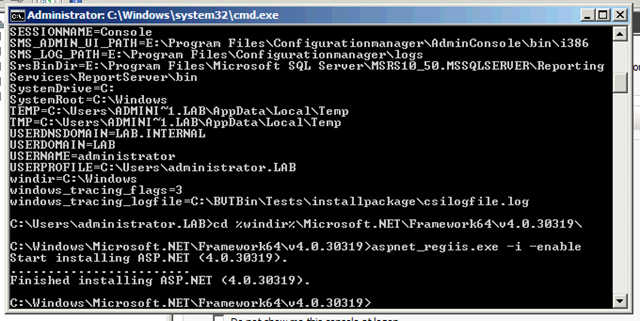
I ran this command: %windir%\Microsoft.NET\Framework64\v4.0.30319\aspnet_regiis.exe –i –enable, which didn’t work for me, it just kept spitting out the help message, which one other person complained of in the above Russ Rimmerman post, even when drilling into the directory with the command prompt. After fiddling around with that for a while I started getting this error: aspnet_regiis.exe is not a valid Win32 application.

Screen Shot 2012-11-02 at 12.53.11 PM

So I performed a repair of the .NET framework 4.0 from the Programs and Applications in control panel, then performed the following command line, which worked:

Screen Shot 2012-11-02 at 12.59.14 PM

Screen Shot 2012-11-02 at 12.59.28 PM

Annnnnd it worked! Except, then I was getting an authentication problem where no matter what credentials I used I couldn’t log in. Peachy.

Screen Shot 2012-11-02 at 1.07.29 PM

So then  I found this article:

http://blogs.technet.com/b/michaelgriswold/archive/2012/06/08/application-catalog-not-working-for-everyone.aspx

Where they suggested to once again, remove the roles from the server, perform aspnet_regiis.exe /iru, then reinstall the roles.

and FINALLY 8 years later we have a working Application Catalog. And now I need a nap.

Screen Shot 2012-11-02 at 3.38.29 PM

Moral of the story:

  1. Ensure that .NET WCF is installed as a prereq
  2. Ensure that .NET 4.0 is registered with IIS (You can do this by installing .NET 4.0 before the IIS roles, or via the command line afterwards)
  3. Ensure that your installation of .NET 4.0 is good.

Prevent Old Computers from Being Discovered in AD by SCCM 2012

What’s that you say? You hate it that system discovery in SCCM brings in ancient systems that don’t exist, nobody cared to clean up and still resolve in DNS?

Have we got a deal for you! One of my favorite new options in the system discovery for SCCM 2012 allows you to choose to discover only computers that have logged onto the domain in the past X days, also only discover computers that have updated their computer account password in the past X days. This feature is so totally awesome, because it will keep your database clear of non-important non-client installed records that somehow still have DNS records. This will be particularly valuable for those organizations which don’t clean out DNS and AD for their servers as a part of a proper decommission process. It’s Friday, it’s a good day. Carry on tech world!

Screen Shot 2012-11-02 at 9.37.43 AM

Quick Reference: Path Selection Policy (PSP) Modification via esxcli

Figured I’d write out some of the PSP modification commands I used today so I’d have them for future reference. You can have them too, there’s probably like 10,000 different posts on this already, but this one is mine so I can find it faster. : D

vSphere 4.0 Command-Line Interface Installation and Reference

Page 85 has information specific to changing the path.

Also: Obtaining LUN pathing information for ESX and ESXi Hosts

Also: Command-Line Management in vSphere 5 for Service Console Users

First and foremost, the vSphere Command-Line Interface reference guide does a way better job than me. This is just what I use on a somewhat normal basis, with the differences between 4.0 4.1 and 5.0 5.1 highlighted.

List all paths on 4.0 or 4.1
esxcli nmp path list
List all path for a specific device on 4.0 or 4.1
esxcli nmp device list –device <device ID AKA naa.60060260d0902d002c7449ced32ceaaa>
List all devices on 4.0 or 4.1
esxcli nmp device list
List all unique device PSPs with counts on 4.0 or 4.1
esxcli nmp device list | grep “Path Selection Policy:” | sort  |uniq –c

image
List all unique working Paths with counts on 4.0 or 4.1
esxcli nmp device list | grep “Working Paths:” |sort |uniq -c
Set pathing policy with 4.0 or 4.1
esxcli nmp device setpolicy –psp VMW_PSP_RR –device <device ID AKA naa.60060160d0902d002c7449ced32ce111>

List all paths on 5.0 or 5.1
esxcli storage nmp path list
List all path for a specific device on 5.0 or 5.1
esxcli storage nmp device list –device <device ID AKA naa.60060260d0902d002c7449ced32ceaaa>
List all devices on 5.0 or 5.1
esxcli storage nmp device list
List all unique device PSPs with counts on 5.0 or 5.1
esxcli storage nmp device list | grep “Path Selection Policy:” | sort |uniq –c
List all unique working Paths with counts on 5.0 or 5.1
esxcli storage nmp device list | grep “Working Paths:” |sort |uniq –c
Set pathing policy with 5.0 or 5.1
esxcli storage nmp device set –psp VMW_PSP_RR –device <device ID AKA naa.60060160d0902d002c7449ced32ce111>

Quickly set pathing policy for all LUNs on 5.0 or 5.1
for i in `ls /vmfs/devices/disks/ | grep naa | grep -v “:”`;
do esxcli storage nmp device set –device $i –psp VMW_PSP_RR; done

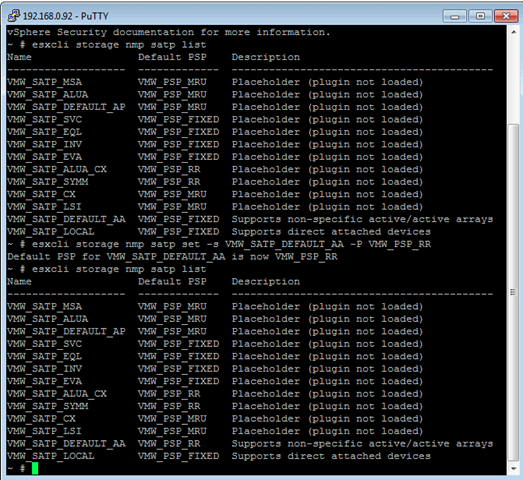
Set the default active active Storage Array Type Plugin to Round Robin
esxcli storage nmp satp set -s VMW_SATP_DEFAULT_AA -P VMW_PSP_RR

Screen Shot 2012-11-01 at 1.31.02 PM

How to Allow RemoteApps but Prevent Full Remote Desktop Logons

This is a question that comes up somewhat frequently. If you want to allow users to use RemoteApp in Windows Server 2008  or 2008 R2, they have to be members of the Remote Desktop Users group on the server. But, sometimes we don’t want our users to have the full desktop UI on a shared server resource. There is actually a very simple way to accomplish exactly what we’re looking at.

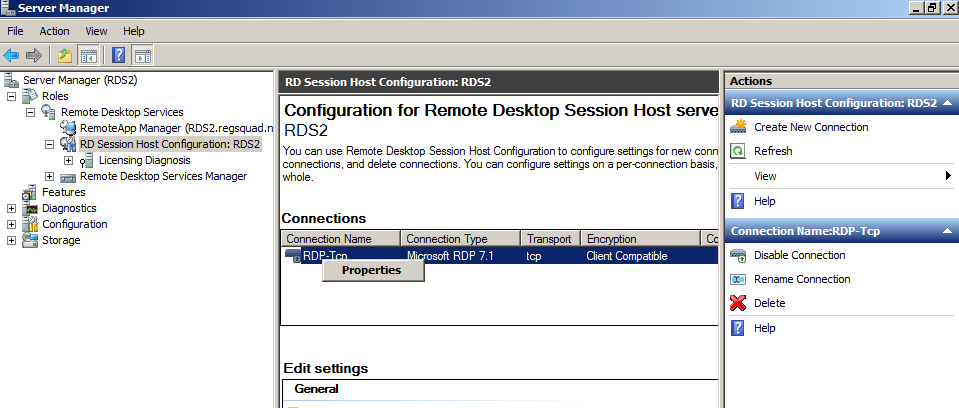
On each of the servers with the Remote Desktop Session Host role, open the connection properties by navigating as shown.

RDS2.regsquad.no-ip.org - VMware Workstation_2012-09-28_14-44-22

Open the properties of the connection that you are using. Click on the environment tab, bubble in the Start the following program, and fill it out as shown below. Basically, we’re configuring the server to automatically log out as soon as anyone tries to log in with the full UI. However, this doesn’t prevent users from connecting with RemoteApp. Pretty cool trick I thought!

RDS2.regsquad.no-ip.org - VMware Workstation_2012-09-28_14-44-34

Performing Outage Free Maintenance on View Connection Servers

The question that I had during my View 5.1 ICM class was how to migrate active view sessions from one VMware View connection server to another, so that maintenance can be performed on one of the connection servers. The short version is that you if tunneling is used, you cant. This means that if you reboot your connection server you will drop connections and people will have to reconnect. Not such a huge deal, since if you are running into this scenario, you obviously have at least 2 connection servers which are probably load balanced and the users will simply reconnect.

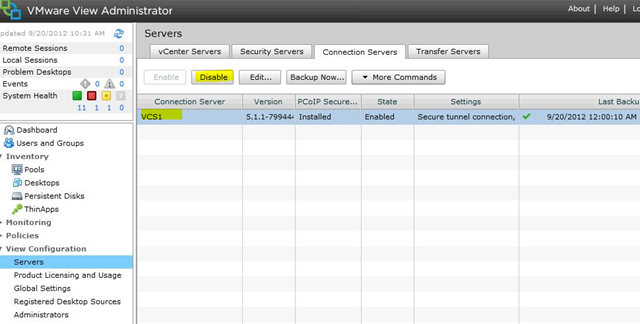
I asked one of my fellow consultants who pointed me to this spot in the documentation. If you disable a connection server within the View Administrative console the active sessions will not be dropped, so it’s basically like doing a “disable logons” in XenApp. I would also then make sure that the load balancing mechanism was pointing only to the connection server that was enabled. This way you can disable a particular connection server the day before and let users gracefully disconnect, providing you have the capacity to be running with one less connection server. Not exactly migrating the session, but it’s better than nothing.

Or you could just send a message from View administrator saying, “You might need to reconnect.” Just food for thought in design.

disable2